Salesforce lead routing happens in milliseconds. The slow part is what comes before it. A lead shows up with a name, an email, and a company, and that’s it. Nothing to route on.
You may have done that on purpose. Every extra field on a web form costs you completions, so you keep the form short. Then the leads land in a catch-all, and your reps spend their day fixing records by hand. (Want to go after the source too? Where Does This Dirty Data Keep Coming From? covers form design and validation.)
You can keep the short form and still get a lead you can route. DataGroomr Enrichment fills in the missing details after the lead is created. Keep your assignment rules if you like them. We can also go a step further and route the lead for you. Watch the video below and I’ll show you how!
Why thin leads break Salesforce lead assignment rules
Lead assignment rules can only work with what’s already on the record. If a lead has no state, no industry, and no company size, none of your rule entries match. It falls to your catch-all, and someone has to move it by hand.
Some teams get around that with generic criteria or a round-robin. Others build an involved Omni-Channel setup or a custom method of their own. Either way, the lead still needs something to route on.
The rules also take upkeep. Every new territory or tier is another entry, and the order of the entries matters. If you’ve ever inherited a long rule set, you know how that goes.
Option 1: Keep your rules and enrich the lead first
If your assignment rules already work for you, keep them. Enrichment fills in the missing fields, so your rules finally have the data they were built to read.
Timing matters here. A rule looks at the lead as it exists when it runs. If enrichment fills the fields after that, the rule needs to run again once enrichment finishes. Try it on a few leads before you trust it. And if you’re wondering whether enrichment will fill gaps with guesses, How to Enrich Missing Data Without Introducing Bias is worth a read.
Option 2: Describe the routing in plain English
Maybe you don’t have rules, don’t love the ones you have, or just don’t want to maintain them. Then describe the routing instead. In DataGroomr, you write what you want in the prompt builder and the enrichment action does the work. No assignment rule needed. (For the bigger picture, see DataGroomr Announces Agentic Enrichment.)
The example in the video has four steps.
1. Look up the company
The action takes the company name on the lead and searches your intelligence provider for it.
2. Fill in the blanks
It writes what the provider found back onto the lead, including annual revenue, industry, street, city, state, postal code, website, and employee count. Nobody researches or types any of it.
3. Tier the lead and set the region
The AI uses employee count and revenue to tag the lead as SMB, Mid-Market, or Enterprise. Under 100 employees or under $50 million in revenue is SMB. 100 to 999 employees, or $50 million to $1 billion, is Mid-Market. 1,000 or more, or over $1 billion, is Enterprise. If the two numbers point to different tiers, the higher one wins.
Then it reads the state and sets a region. Northeast, Midwest, South, or West.
4. Route to the owner
Last, it uses the Salesforce MCP to look up the two sales reps by role and update the lead owner. Northeast and South go to the Eastern Sales Team. West goes to the Western Sales Team. Midwest goes to whichever rep has fewer open leads, so the workload stays balanced, and a tie goes to the Eastern team. If the region comes back empty, the action skips routing and leaves the owner alone.
Here’s an abridged version of the prompt. This prompt uses some custom fields created for the purpose of this demonstration. Do not assume this prompt will work in your Org without creating these fields.
Step 1. For a Lead, search the {{Lead.Company}} with your intelligence provider.
Step 2. Write the results into {{Lead.AnnualRevenue}}, {{Lead.Industry}}, {{Lead.Street}}, {{Lead.City}}, {{Lead.State}}, {{Lead.PostalCode}}, {{Lead.Website}}, and {{Lead.NumberOfEmployees}}.
Step 3. Set {{Lead.Region__c}} from the {{Lead.State}} and Set {{Lead.Company_Tier__c}} to SMB, Mid-Market, or Enterprise using employee count and revenue, and use the higher tier if they disagree.
Step 4. Then use the Salesforce MCP to route the Lead to Users Eastern or Western Sales Team user based on the {{Lead.Region__c}}
Run it on a dataset
First, connect your intelligence provider under Setup > Cleanse > Intelligence Providers. Then go to Setup > Cleanse > Enrichment Actions and click Create Enrichment Action.

The Enrichment Actions library with the Short Lead Enrichment and Routing action listed first
Write or copy the prompt from above into the prompt editor, or write your own here.

The prompt editor with the four-step lead routing prompt and its field tokens
DataGroomr builds an execution plan from your prompt. Each step shows which provider handles it, plus a confidence score.
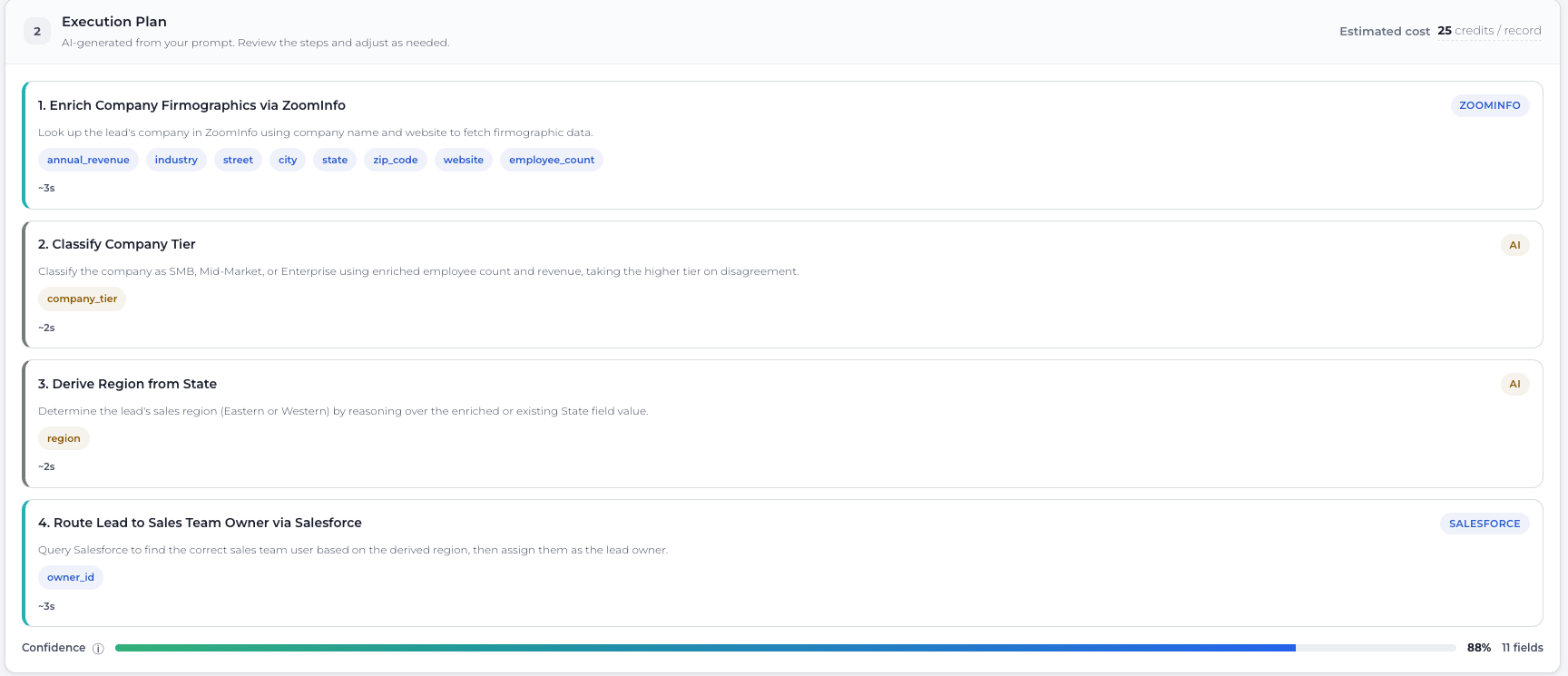
The execution plan with four steps: ZoomInfo, company tier, region, and Salesforce routing
Then you map each output to a Salesforce field. In this example, all 11 fields matched automatically.
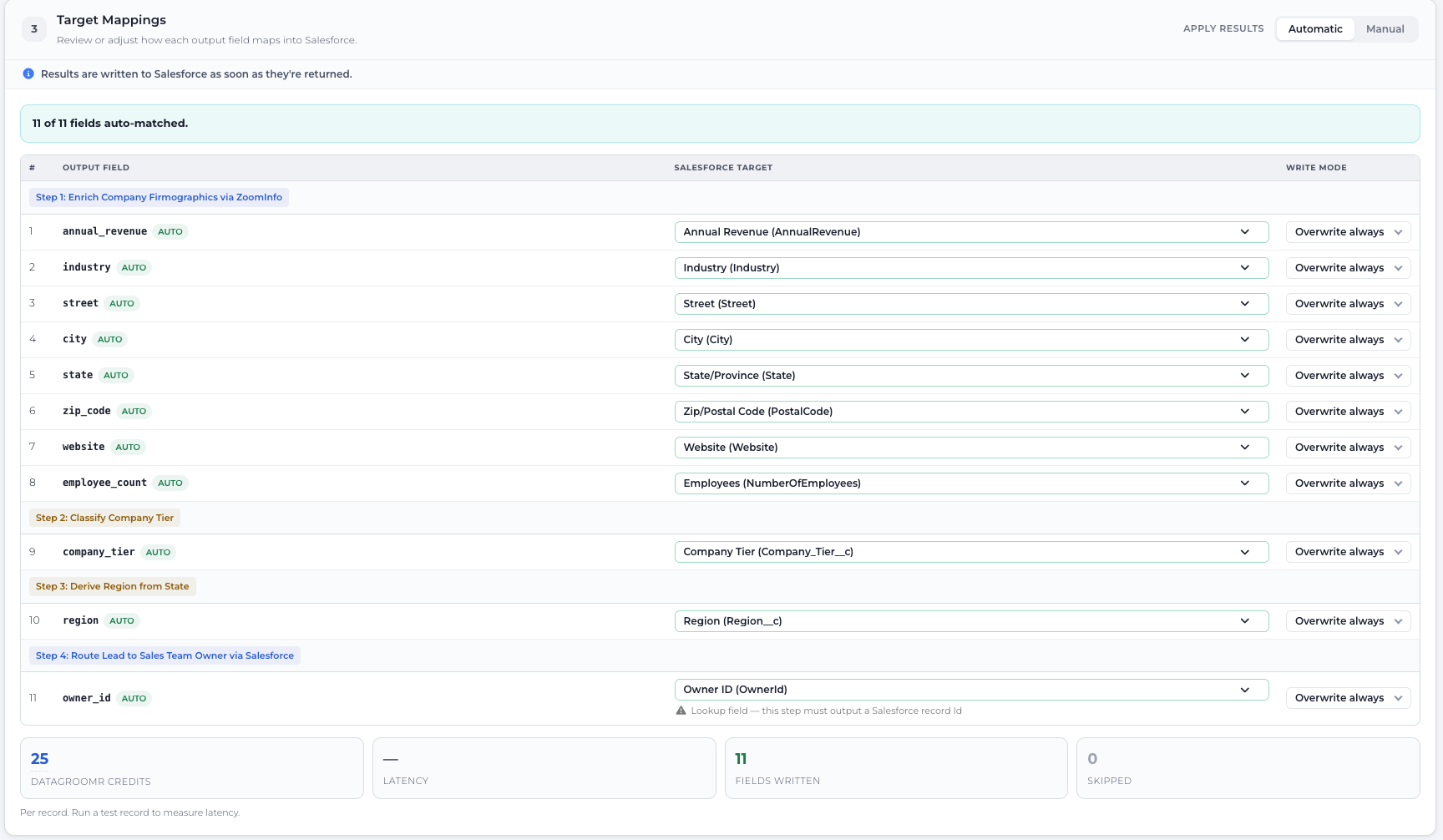
The Target Mappings section showing all 11 outputs matched to Salesforce fields
To run it, open your Cleanse dataset, choose Edit Dataset, and go to the Enrich tab. Click Add Action, pick your enrichment action, and save.
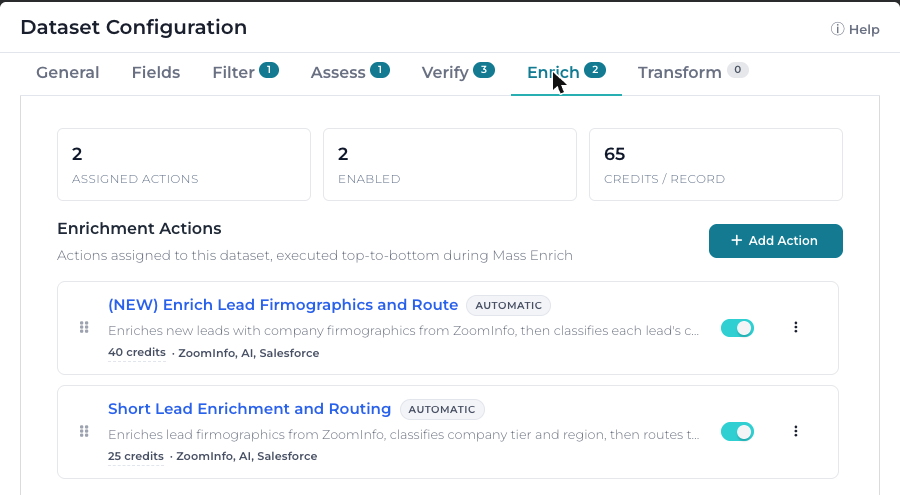
The Enrich tab in Dataset Configuration with two enrichment actions assigned
Then run the enrichment on whichever leads you want. Open the Mass Actions menu and choose Mass Enrich.
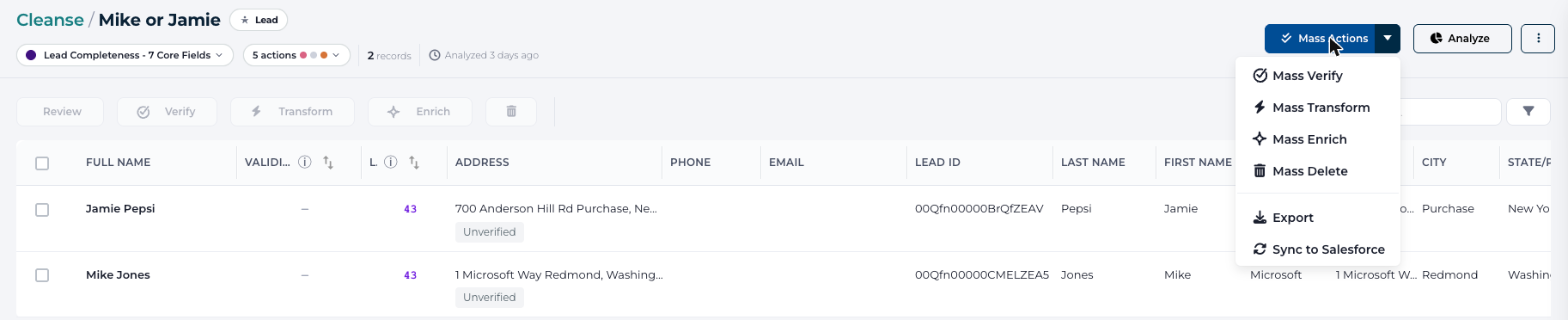
The Mass Actions menu on the Mike or Jamie dataset with Mass Enrich in the list
Pick the action you want to run, and DataGroomr shows how many records it will touch.
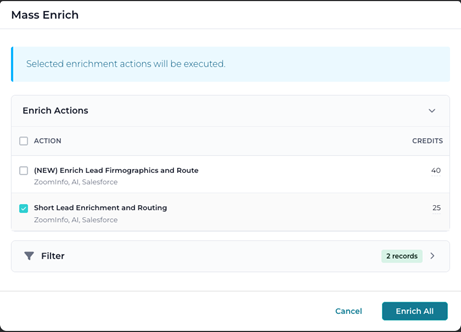
The Mass Enrich dialog with the Short Lead Enrichment and Routing action selected for 2 records
Run it as leads are created or on a schedule
Running it by hand is fine for cleanup. For new leads, automate it. In the Automate module, open Real-time Triggers.
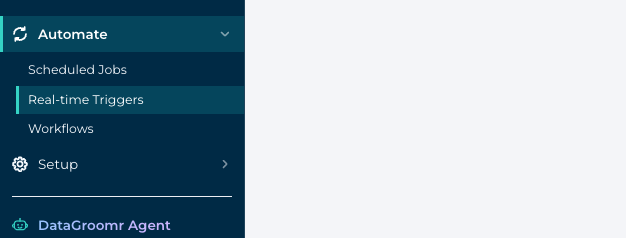
The Automate menu with Real-time Triggers highlighted
Click Create Trigger. Pick the Lead object, check Record Created, and choose Enrich as the action.
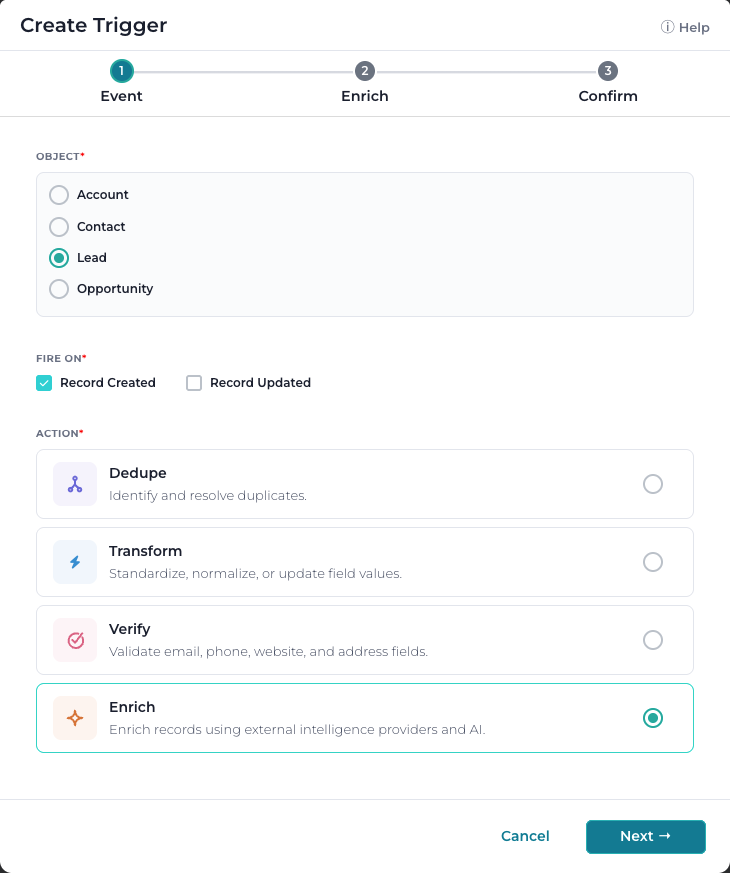
The Create Trigger dialog with Lead selected, Record Created checked, and Enrich chosen
On the next step, select your enrichment action.
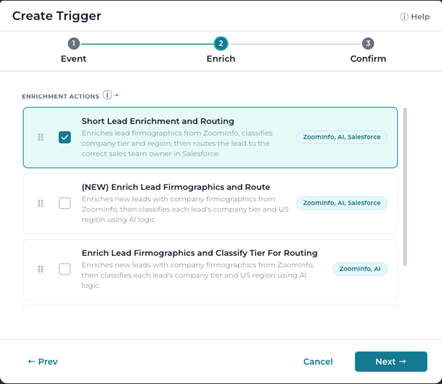
The Enrich step of the Create Trigger dialog with Short Lead Enrichment and Routing selected
Now every new lead gets enriched and routed as it arrives. You can also set it up as a scheduled job if you’d rather run it in batches. Real-time Enrich triggers need a Pro or higher subscription with Enrichment enabled, and the Triggers help article has the details.
Final thoughts
Routing depends on data a short form doesn’t collect, and enrichment collects it afterward. A prompt can now do the routing work that used to take a whole rule set.
It won’t catch everything. If your intelligence provider can’t find a company, that lead still needs a person. And the routing is only as good as the roles and rules you describe. But the leads that used to pile up in the catch-all get a tier, a region, and an owner before a rep ever opens them.
To see these features in action, request a live demo or start a free trial at datagroomr.com. You can also learn more in the DataGroomr support documentation at help.datagroomr.com.