DataGroomr can clean up your duplicate records. But what’s better than cleaning up duplicate records? Not having them created in the first place!
To prevent duplicate records in Salesforce, the check has to happen before the save. That’s what DataGroomr’s Real-Time Duplicate Check API does. You send it the values someone just typed, and it tells you if a duplicate record has been identified.
In the following video, I’ll walk you through an example I built using the power of DataGroomr, called through the DataGroomr API. It’s a Salesforce screen flow that checks for duplicates before it creates a Lead, and it’s in an unmanaged package you can install. Use this as a starting point. Your fields and processes won’t match mine, so plan on changing it.
Why check before the save?
DataGroomr already catches duplicates after they’re created, with Live Dedupe and scheduled dedupe. Keep both running (more on that below).
Once a duplicate Lead is saved, though, your assignment rules and automation run on it. A rep can start working it before anyone notices there are two. A check on the entry screen warns the person typing, and the existing record is one click away.
Salesforce’s duplicate rules can warn at save too. Why Salesforce Deduplication Is Not Enough covers where they fall short. For the usual ways duplicates sneak in, see Common Duplicate-Record Pitfalls in Salesforce.
What’s in the package
- A screen flow, DataGroomr – Unmanaged Lead Prevention Template
- An Apex action, Check For Duplicates (DataGroomr), that makes the call
- A Named Credential that holds the DataGroomr address
- An External Credential, DataGroomr API Credential, that holds your API key
- A permission set, DataGroomr API Access
The flow has “Template” in its name, but it isn’t a true Salesforce flow template, so you won’t find it on the Templates tab in Flow Builder. It’s unmanaged, which means you can edit all of it and you won’t get automatic updates. It installs as a Draft.
You’ll need a DataGroomr account and a Dedupe dataset for the object you want to protect. Install the package in a sandbox first.
Step 1: Get your DataGroomr dataset ready
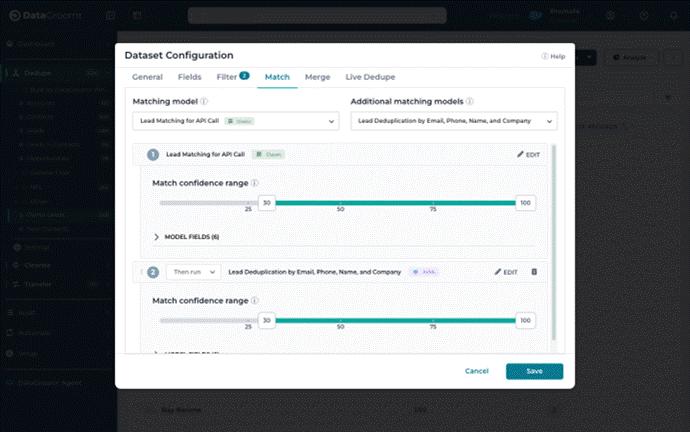
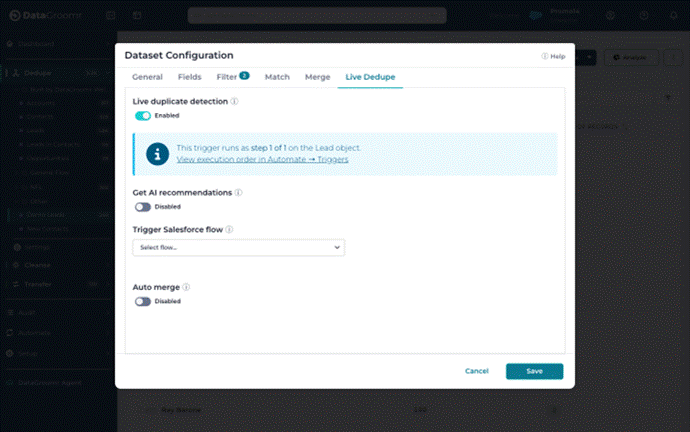
The API checks incoming values against a Dedupe dataset. That dataset needs Live Dedupe turned on and a Classic matching model as its primary.
- Open the dataset and choose Edit Dataset.
- On the Match tab, make a Classic model the primary.
- On the Live Dedupe tab, turn on Live duplicate detection and save.
- Copy the dataset ID from the end of the dataset’s URL. You’ll paste it into the flow in Step 4.
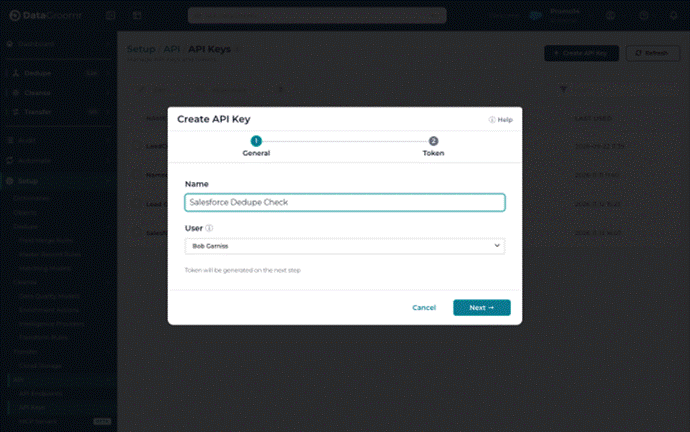
- Go to Setup > API > API Keys and click Create API Key.
- Name it (mine is Salesforce Dedupe Check) and click Next.
- Click the eye icon and copy the whole token, including the Org ID before the pipe.
- Save the token somewhere secure before you click Close. DataGroomr only shows it once.
The app won’t let you keep an AI model as the primary with Live Dedupe on, and Live Dedupe datasets count toward your plan’s limits. More in Live Dedupe: Deduplication in real-time and Integration API and secret keys.
Step 2: Install the package
The package brings in the flow, the Apex action, the credentials and the permission set. The flow installs as a Draft, so nothing runs until you activate it in Step 7. Try it in a sandbox first.
- Open the DataGroomr package install link.
- Choose Install for Admins Only so nobody stumbles into the flow before it’s ready.
Step 3: Add your API key to the External Credential
This is how Salesforce knows to send your API key with every call to DataGroomr.
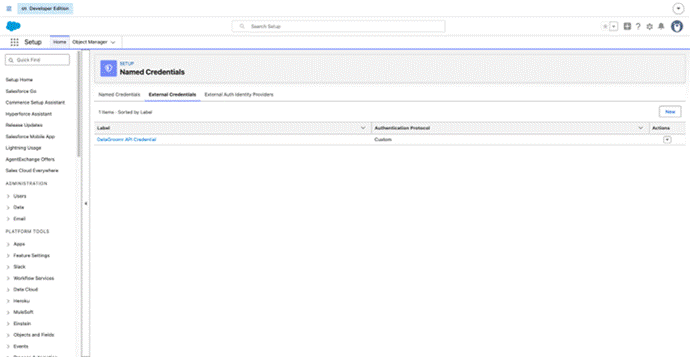
- In Salesforce Setup, search for Named Credentials and open the External Credentials tab.
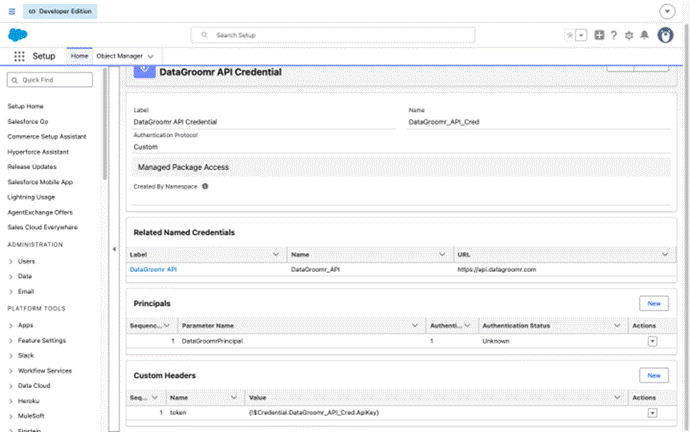
- Open DataGroomr API Credential.
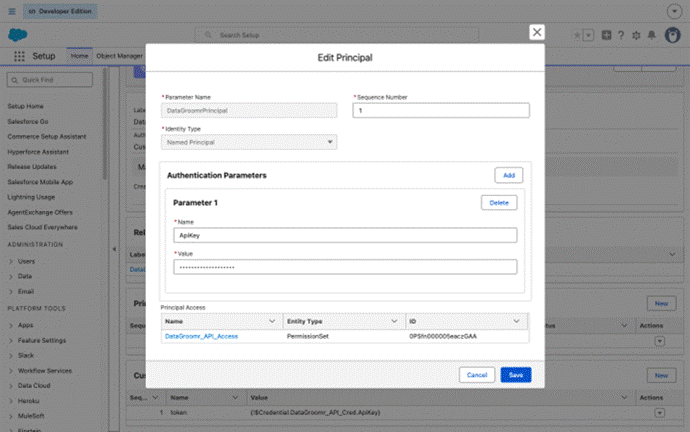
- Under Principals, click the down arrow in the Actions column for DataGroomrPrincipal and choose Edit.
- Check that the authentication parameter is named ApiKey.
- Paste your full token into Value and save.
- Under Custom Headers, check that the header named token has this value:
{!$Credential.DataGroomr_API_Cred.ApiKey}
The last part, ApiKey, has to match the authentication parameter name exactly. If DataGroomrPrincipal isn’t there, create it with an authentication parameter named ApiKey, then make sure a permission set grants External Credential Principal Access to it.
Step 4: Set your dataset ID in the flow
The flow needs to know which Dedupe dataset to check against. That’s the ID you copied in Step 1.
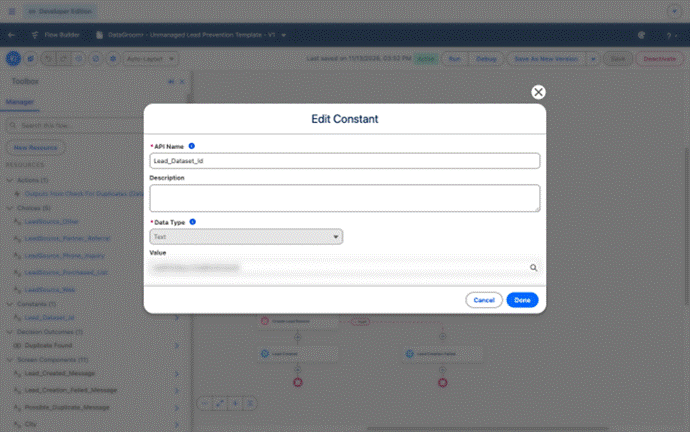
- Open the flow in Flow Builder and open the Toolbox.
- Under Constants, click Lead_Dataset_Id.
- Replace REPLACE_WITH_DATASET_ID with the ID you copied and click Done.
- Save the flow.
Step 5: Assign the permission set
Users need this permission set before the flow can call DataGroomr.
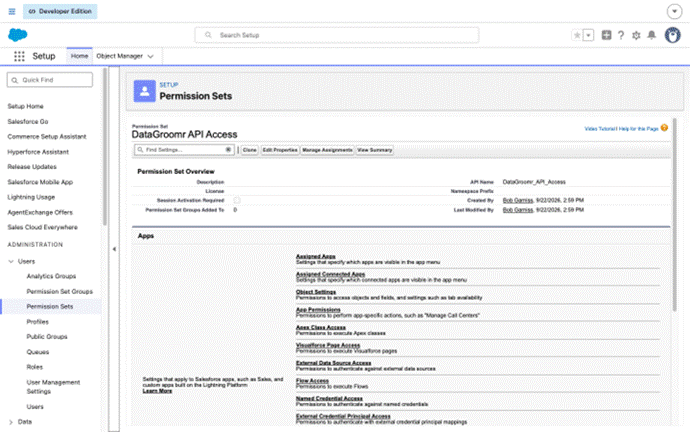
- Open the DataGroomr API Access permission set. It already grants access to DataGroomrPrincipal.
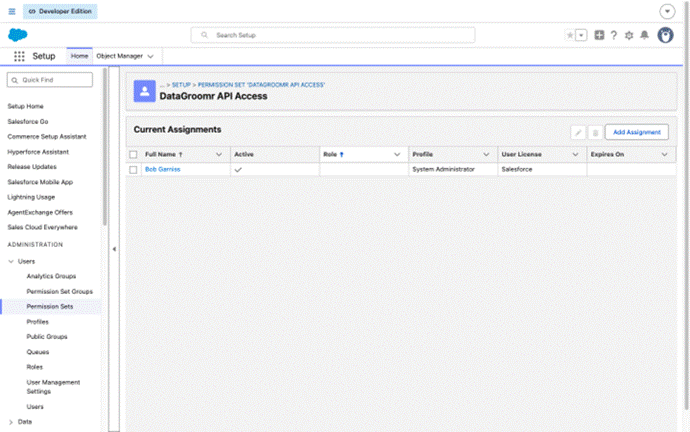
- Assign it to everyone who’ll run the flow, you included.
Without it, the call fails and that user gets no warning at all.
Step 6: Make the flow yours
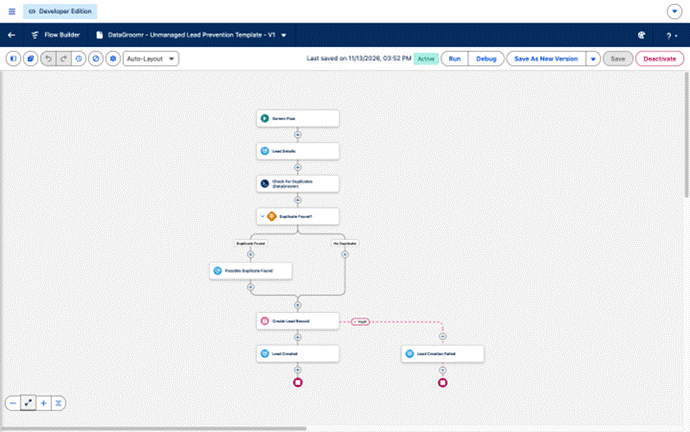
Here’s a quick tour of what you’re changing.
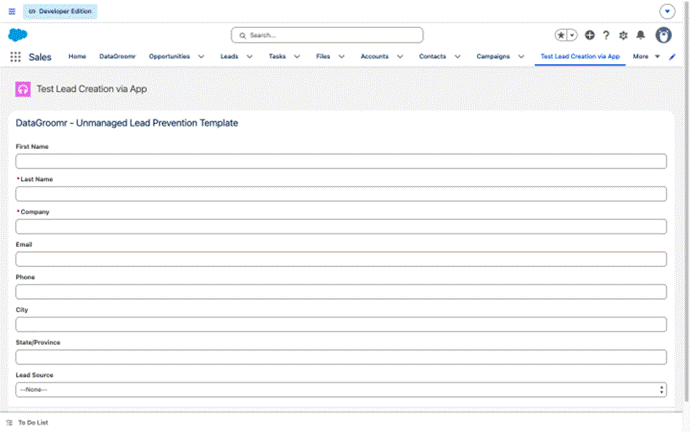
- Lead Details is the form. I kept it simple: name, company, email, phone, city, state, and Lead Source. Change it to match how your team creates Leads.
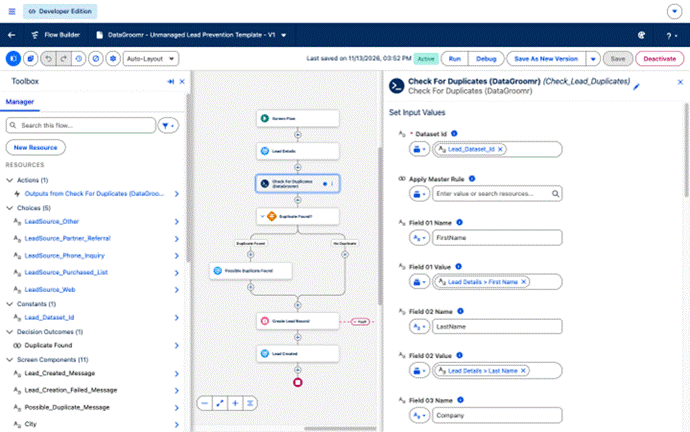
- Check For Duplicates (DataGroomr) sends your dataset ID plus field and value pairs. Mine are FirstName, LastName, Company, and Email. Use your fields’ exact API names.
- The DataGroomrDuplicateCheck Apex class takes up to 10 pairs and skips blank ones. If you need more than 10, add InvocableVariables to the class.
- Duplicate Found? looks at the action’s isDuplicate result. A match goes to Possible Duplicate Found. No match goes straight to Create Lead Record.
- Possible Duplicate Found shows the match score and a View possible duplicate link. It warns but doesn’t block. Previous goes back to the form, and Next creates the Lead anyway.
- To block instead, take the Next button off under Configure Footer, or route the match path somewhere that doesn’t create a record.
- Create Lead Record saves the Lead, and the Lead Created screen links to it. If the save fails (a validation rule, say), the fault path goes to Lead Creation Failed.
The links use a short /recordId URL on purpose. Lightning ignores “open in a new tab” on /lightning/r/ links, so the record would replace the form and your user would lose what they typed.
Using it on a different object
The Apex action works with any object. To switch:
- Point the constant at that object’s Dedupe dataset.
- Rebuild the form with its fields.
- Map its field and value pairs on the action.
- Switch Create Records to that object.
The flow is also just one way to call the API. Anything that can make an authenticated HTTPS call to DataGroomr can run the same check.
Step 7: Activate it and decide where users open it
Where your team opens the flow is up to you.
- Activate the flow.
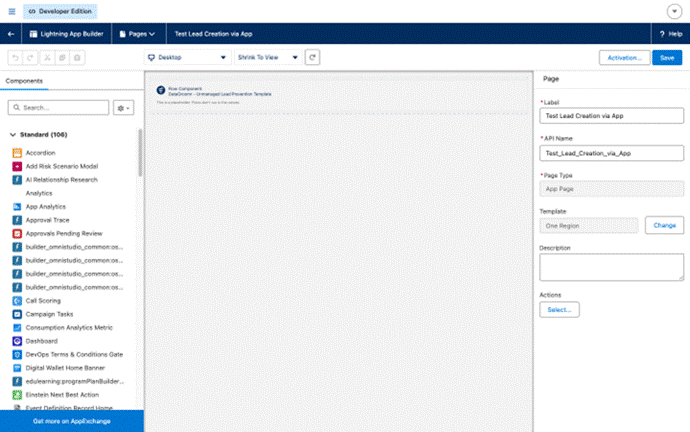
- Put it where your users already work. I used a Flow component on an App Page in the Sales app. A Quick Action works too.
What to know before you roll it out
It only protects this entry point. Imports, the standard New button, API loads, and other flows all go around it, so keep Live Dedupe and your scheduled dedupe running. Where Does Dirty Data Keep Coming From? is a good checklist for the other doors.
It shows the top match only, even when DataGroomr finds more than one.
Final Thoughts
There’s just no way to block duplicates 100% of the time. But if you limit the other ways users can create records, and have all record creation make an API call to DataGroomr, you can stop duplicates before they’re ever created.
There’s a bonus, too. The API call uses your dataset to identify duplicates, so when you improve how that dataset finds them in DataGroomr, you also improve how well duplicates get stopped in Salesforce.
To see these features in action, request a live demo or start a free trial at datagroomr.com. You can also learn more in the DataGroomr support documentation at help.datagroomr.com.