You’re looking at three duplicate Accounts. Two have very little activity with only a few related records. The third has eleven Opportunities, forty Tasks and a decade of Cases behind it. Which one should survive the merge?
That history can make all the difference. And now DataGroomr can factor it into your merge decisions automatically.
Our November ’26 release introduces related record counts that can help determine. which duplicate becomes the master, which field values to retain, and what to prioritize during review. Alongside it, You’ll also find Similar matching for dates, numbers and locations, a redesigned Matching Model editor, much faster mass merge and mass enrichment, and a faster, more capable Oscar (the DataGroomr AI Agent). Here’s what’s new.
Keep the Record That Carries the History
The record with the most history is usually the one you want to keep. Release 29 introduces related record counts — the number of Opportunities, Cases, Contacts, Tasks, Events or custom child records attached to each duplicate — and lets you use them to determine what survives a merge.
Master rules that think in relationships
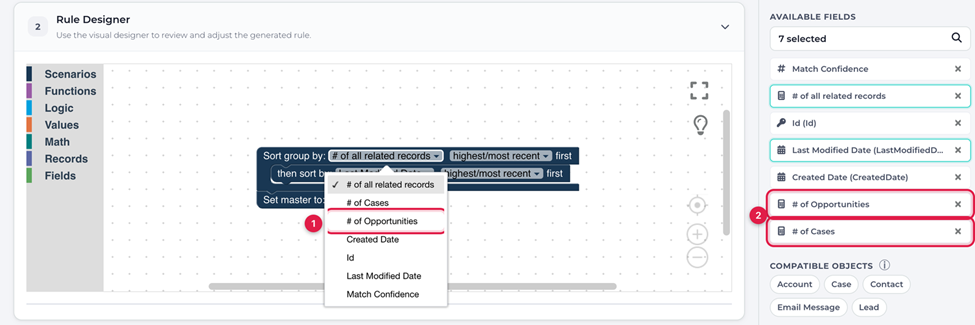
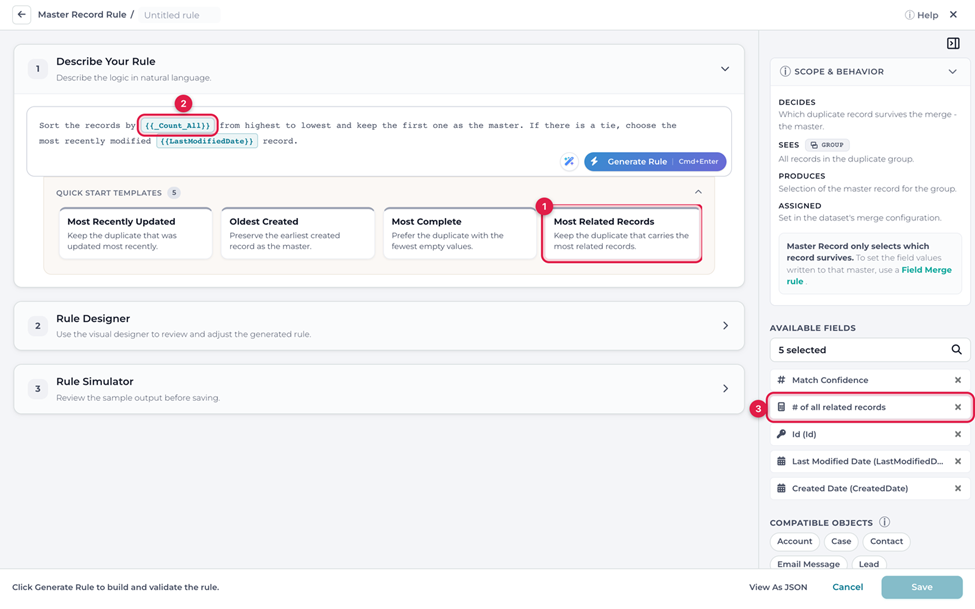
In the master rule editor, related record counts appear right in the existing dropdowns. Pick # of Opportunities in Sort group by, choose highest first, add Last Modified Date as a tie-breaker, and you’re done — no new blocks required. Want the record with the most activity of any kind? Choose # of all related records, which works for every object.
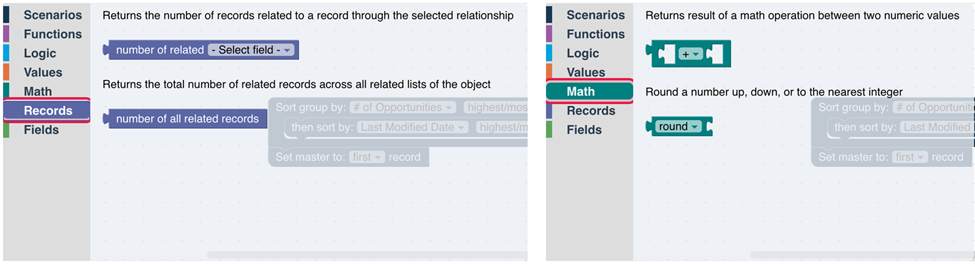
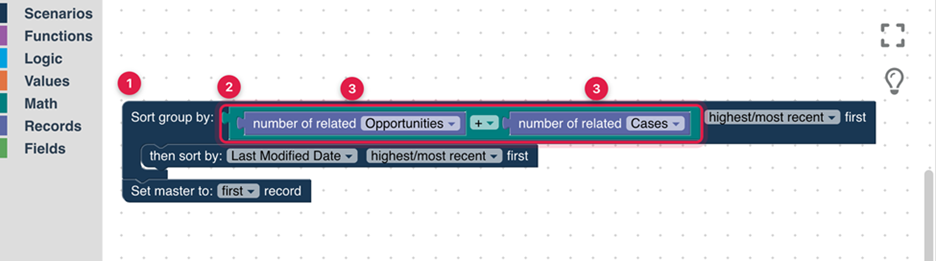
For more nuanced logic, the Records category adds two new blocks — number of related [relationship] and number of all related records — and a new Math category lets you combine them. Want to weigh Opportunities and Cases together? Add them up and sort by the result with the new Sort group by value block.
Field rules that borrow from the busiest record
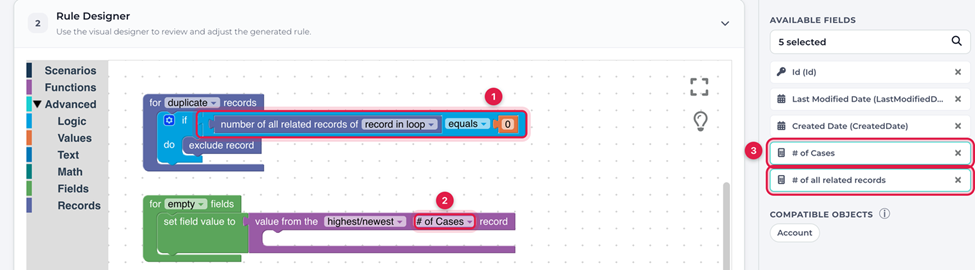
The same counts work in field merge rules. Fill empty fields from the duplicate with the most Cases, or exclude duplicates that have no related records at all, using the same blocks and dropdowns.
See the counts before you merge
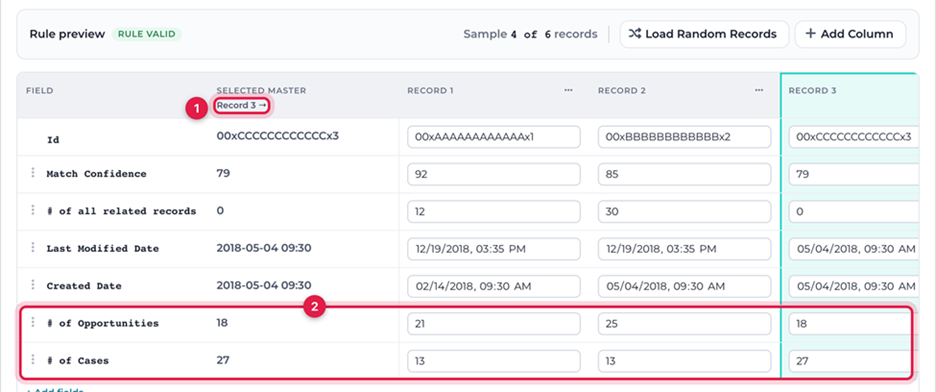
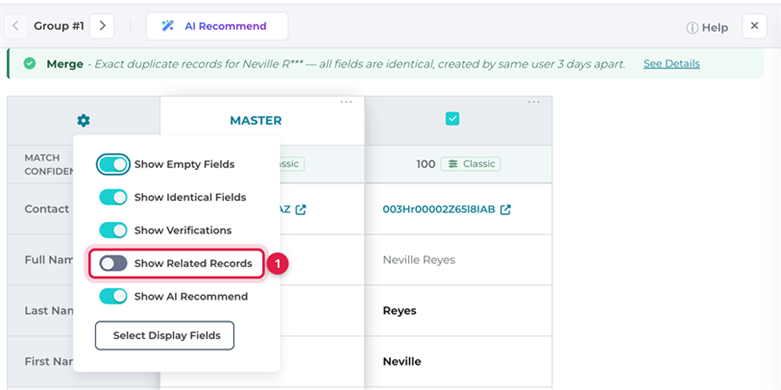
Not ready to automate? Turn on the new Show Related Records switch in the Dedupe review dialog’s display settings. Each record displays a row for every related list, with the highest count in bold, so you can see at a glance which record carries the history. The switch is remembered between sessions and can be turned on without closing the group you’re reviewing.
Get started in one click
A new Most Related Records Quick Start template keeps the duplicate with the most related records and breaks ties by most recent update. Prefer to describe it? Type “keep the account with the most opportunities” into Describe your rule, and AI builds the rule for you. Personalized AI recommendations can now suggest a count-based rule when your data makes it useful.
Counts are read directly from Salesforce when the rule runs, so individual merge, mass merge, Live Dedupe auto-merge, export with the MasterId column and the duplicate-check API all use consistent master selection logic. Only direct lookups are counted, deleted and archived records are excluded, and nothing is ever written back to Salesforce.
Why this matters: Selecting the right master record is one of the most important parts of deduplication and the hardest part to get right. Choosing the master by the relationships it holds helps preserve the record your team relies on, — while reducing the need to re-link related records after a merge.
Match on “Close Enough”
Imagine you’re looking at two Opportunities with the same Name and Contact, created four minutes apart. Or two Accounts whose headquarters sit 300 meters from each other. Or two Contacts whose birthdates differ by a day because of a typo. Are they duplicates? Almost certainly — and now your matching model can catch them.
Similar matching for dates, numbers and locations
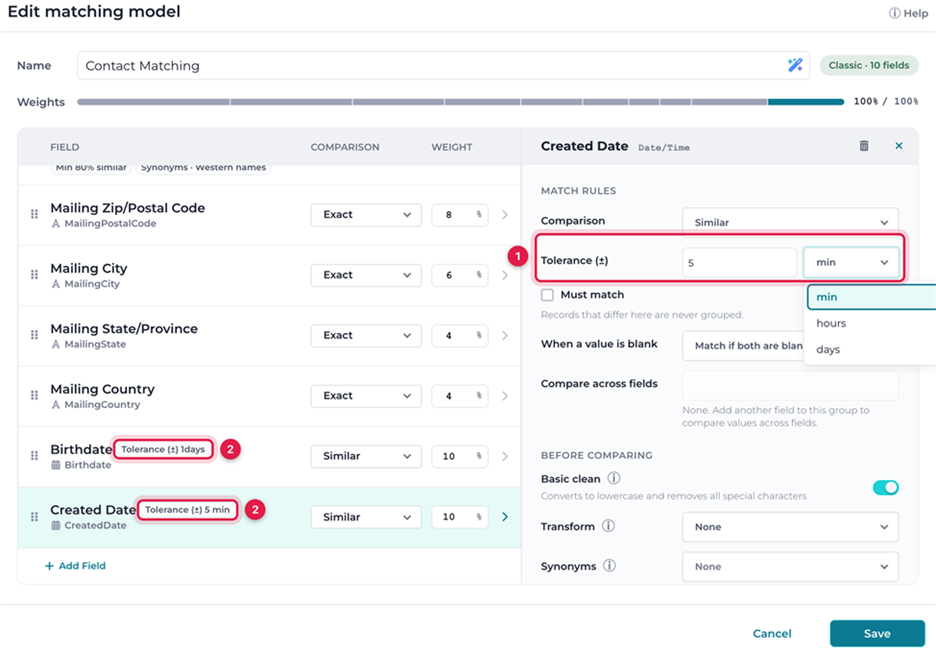
Classic matching models can now use the Similar comparison for date, date/time, number, currency, percent and geolocation fields, helping you identify potential duplicates when values fall within a specified tolerance:
- Dates: Within a number of days
- Date/time: Within minutes, hours or days
- Numbers, currency and percent: Within a plus-or-minus range
- Geolocation: Within a distance you specify
We also now let you control similarity on every Similar field, including text. Set a minimum similarity percentage per field to make matching as strict or as relaxed as your data needs.
“Opportunities with the same Name and Contact created within 5 minutes of each other” is now a single model, with nothing else to set up.
A Matching Model editor built for scanning
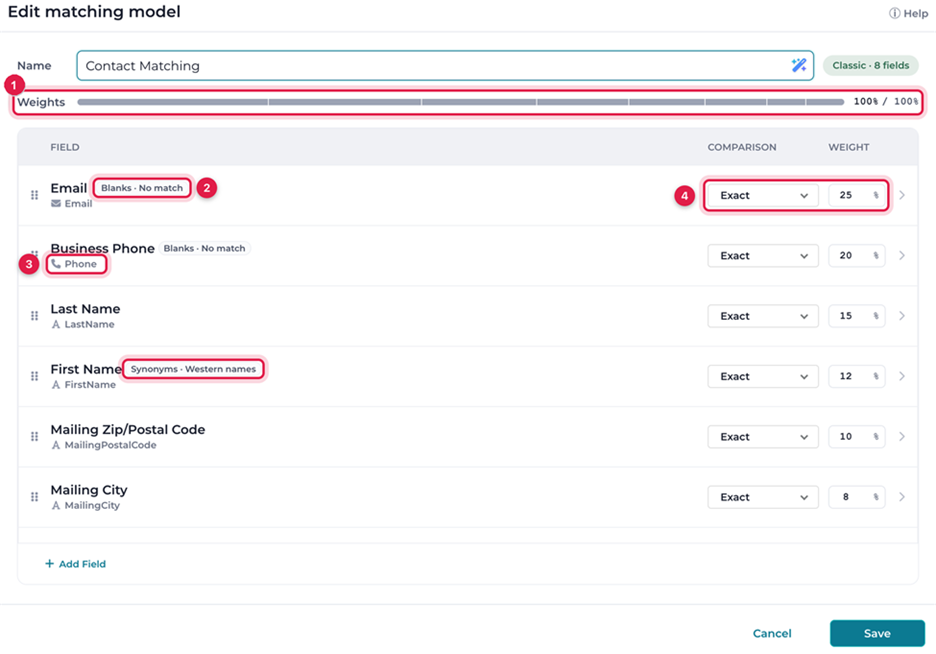
We redesigned the Edit Matching Model dialog for Classic models to make model settings easier to review. The field list now shows each field’s type, API name, comparison and weight, with small tags highlighting non-default settings — “Min 80% similar,” “Tolerance (±) 2 hours,” “Ignore words · Company suffixes.” You can understand a model without opening each field.
Click a field and its settings slide in from the right, grouped into Match rules and Before comparing, each with a help tooltip. A weights bar across the top shows how much each field contributes; weights now need to total exactly 100% to save, and a Balance to 100% button does the arithmetic for you. Adding fields opens the familiar field selection step right inside the dialog, and settings on the fields you keep are preserved.
Why this matters: Real-world duplicates rarely match exactly to the minute or the meter. Matching on close values, with similarity you control, lets your model match the way you’d judge by eye, and the new editor makes it easy to see what the model is actually doing.
Big Jobs, Done Faster
You kick off a mass merge of twenty thousand groups before lunch. Will it be done by the end of the day — or the end of the week? This release delivers major performance improvements for the jobs that matter most at scale.
Mass merge, now faster with parallel processing
Mass merge now runs several merge batches at the same time and tunes the number automatically. When Salesforce reports record locks, governor limits or too many concurrent requests, DataGroomr adjusts processing to accommodate those limits, then increases throughput when conditions allow. Undo and rollback information is now prepared for many groups at once rather than one at a time. In our testing, large jobs finished roughly two to three times faster, with undo and rollback working exactly as before. NPSP orgs, where household relationships make record locking more likely, continue to merge one batch at a time.
Mass enrichment gets faster
Enrichment now starts each new record as soon as processing capacity becomes available. Prompts that use only web search or AI can process many more records at once. Providers with strict rate limits, such as ZoomInfo, continue to operate within those limits. The result: large enrichment runs finish dramatically faster.
Live Dedupe that keeps your place
On Live Dedupe datasets, the Duplicates list now updates in place — only the groups that change are refreshed, including right after you merge. Your scroll position, filters, sorting and open review stay put, and Undo is available immediately after each merge.
A Smart Dashboard that stays out of the way
We improved the performance of the Smart Dashboard. It now loads faster on large orgs and runs independently of merges, imports, exports and verifications. Figures update within about 15 minutes after an operation completes, and your Insights history is fully preserved.
Why this matters: Faster merge and enrichment processing helps Salesforce teams manage large data volumes more efficiently, while a dashboard that runs independently keeps data quality insights accessible.
Oscar Gets Faster and Understands Your Setup
Oscar, the DataGroomr AI Agent, now reponds faster, handles multi-step requests more effectively, and uses DataGroomr’s tools more reliably.
We also expanded the capabilities customers rely on most:
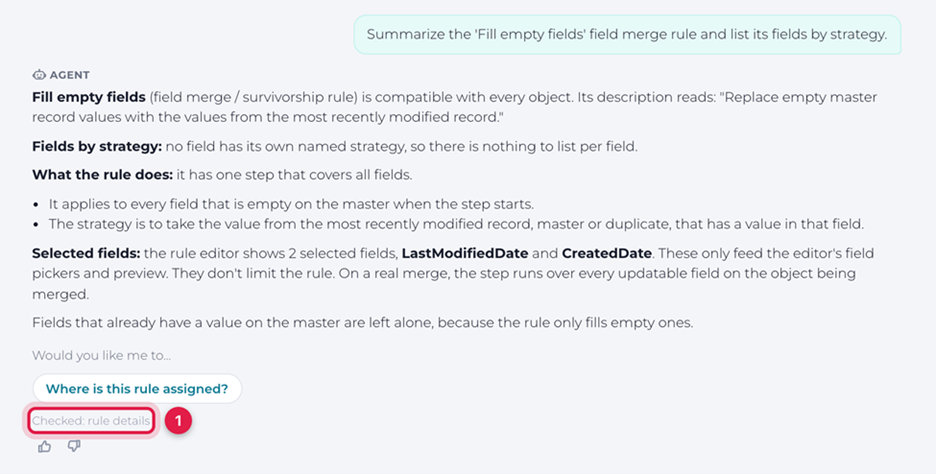
- Reads your rules — Ask Oscar to summarize a saved rule or list its fields by strategy, and it reads the rule directly.
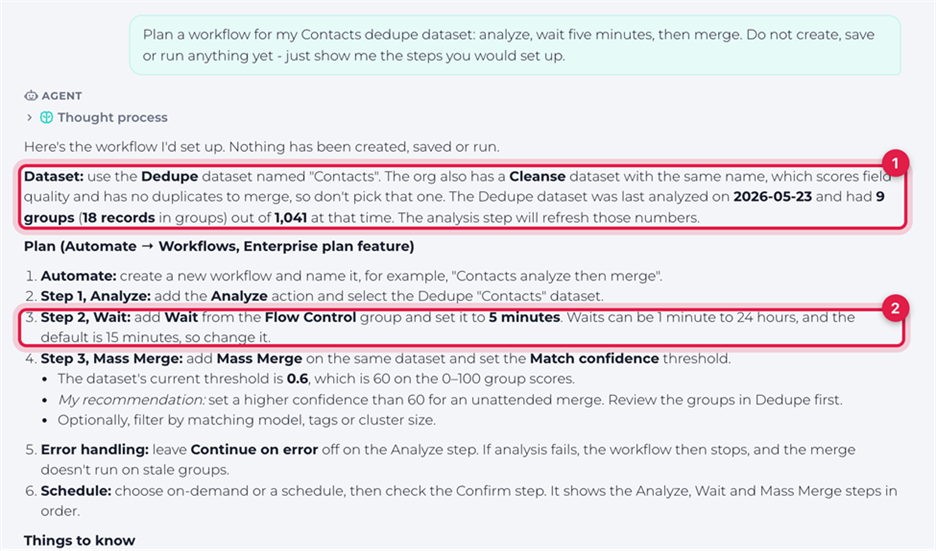
- Builds complete workflows — Oscar can now add Wait steps, so “analyze, wait five minutes, then merge” works as you’d expect.
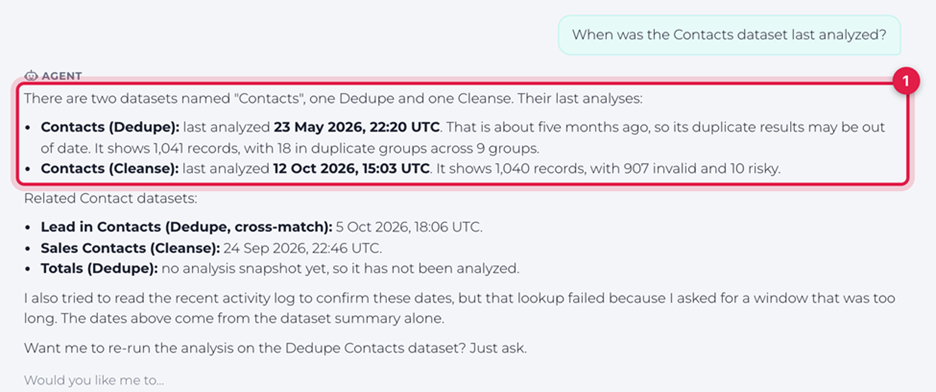
- Asks when it’s unsure — When more than one dataset matches your question, Oscar lists them and asks which one you mean.
- Digs into root causes — Questions about where duplicates come from now consider the dataset’s matching model.
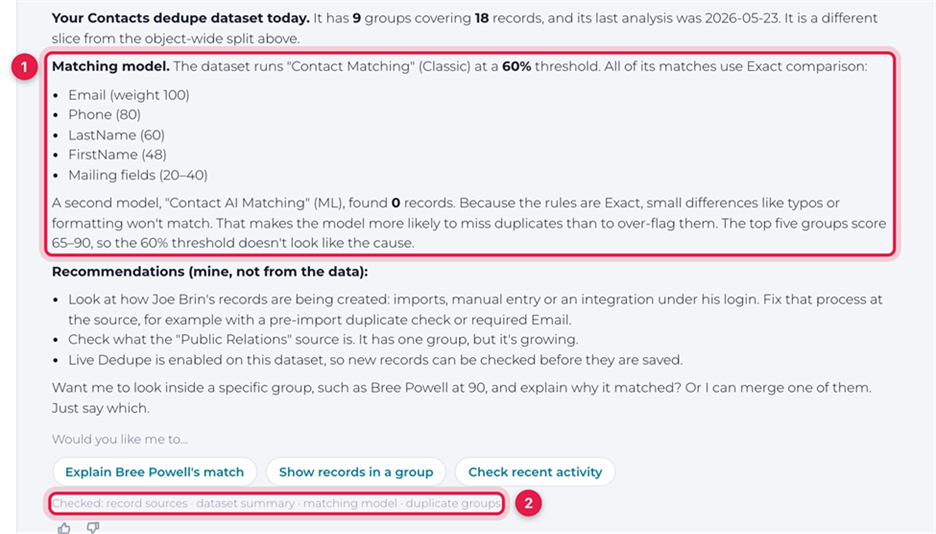
- Respects your role — Oscar follows exactly the same permissions as the app. If an action isn’t allowed, it tells you which permission is missing.
Why this matters: An assistant is only useful if you can trust what it says and what it does. Oscar now draws on your actual configuration and operates within your existing permissions.
Smaller Wins Worth a Mention
- Retry from the Log Browser — When an import, merge, convert, update, transform or delete fails, re-run it directly from the Log Browser.
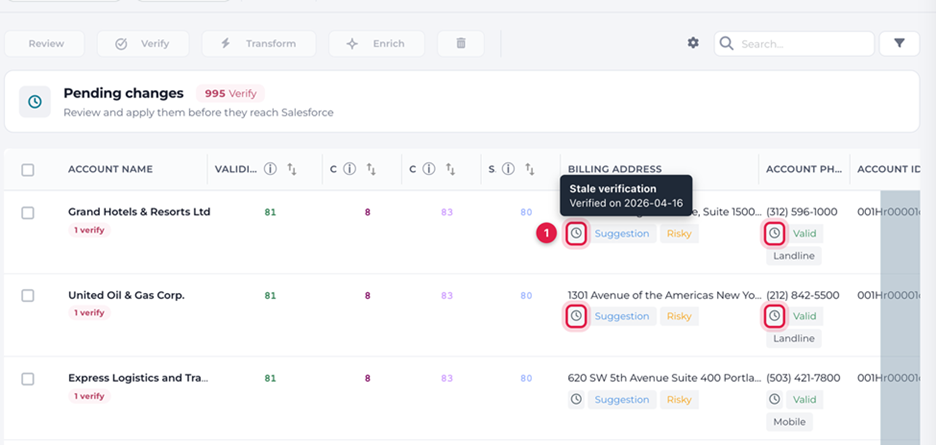
- Know when a verification needs refreshing — Cleanse datasets now flag records verified more than six months ago with a clock badge, and records whose values have changed in Salesforce since verification with a ≠ badge, showing when the change was detected.
- More complete AI model recommendations — When AI suggests fields for a new matching model, it now accounts for your existing dictionaries and field groups and returns a ready-to-use setup.
- No surprises when changing plans — Changing your subscription or removing seats now shows which features, users, datasets, models, triggers and workflows will be affected before you confirm.
- One credit pool for Production and Sandbox — Connected Production and Sandbox orgs now share a single pool of verification credits, so you can test verification runs in a Sandboxwithout managing separate credit balances
Your Existing Setup Keeps Working
Nothing changes until you want it to. Existing master and field merge rules run exactly as before without additional Salesforce calls, Similar text fields retain their current behavior, and Show Related Records stays off until you turn it on. One thing to watch for: The next time you edit a Classic matching model, field weights will need to add up to 100% before you can save. The Balance to 100% button takes care of that in one click.
Tell Us What’s Next
Have an idea that would make DataGroomr work better for your team? Share it on our Ideas Portal! Many of our features started as customer suggestions. Questions about anything in this release? Reach out to us at support@datagroomr.com.
Happy DataGrooming!