Picture this: you run an enrichment action across a few hundred Accounts. The provider returns great data, but then a Salesforce validation rule rejects half the writes. Where did those enrichment results go?
The October release gives you more flexibility and confidence in how enrichment results are managed and applied to Salesforce. Enrichment results are now safely staged in DataGroomr before anything is written to Salesforce. You can choose to write results automatically or review them first, giving you more control and a chance to catch possible issues. This release also adds new workflow steps and a long list of fixes that make merging more reliable. Let’s dig in.
Preserve Enrichment Results, Even When Writes Fail
Every enrichment result is now stored in DataGroomr as soon as a data provider returns it — before DataGroomr attempts to write anything to Salesforce. The Salesforce update uses that stored result, so if the write fails, the enrichment data is still there and ready to retry. Retrying doesn’t call the provider again or use additional enrichment credits.
Automatic or Manual — Your Call
Each enrichment action now includes an Apply results setting under Target Mappings:
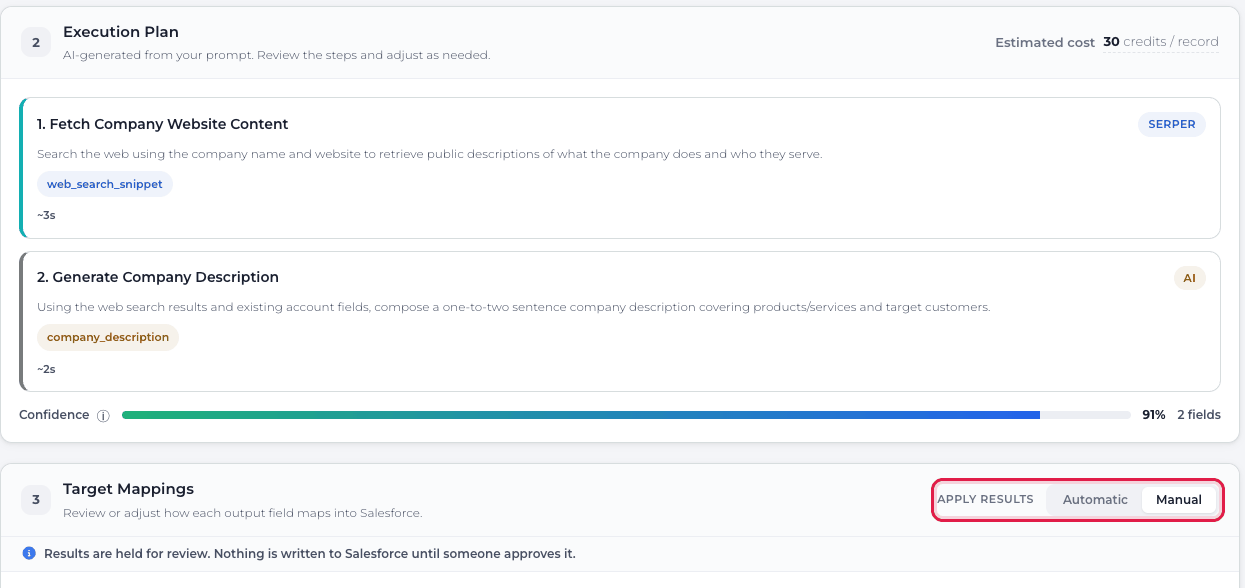
- Automatic — Results are written to Salesforce as soon as they are returned, just as before.
- Manual — Results are staged for review. Nothing is written to Salesforce until someone approves it.
You set the mode once at the action, level and a MANUAL or AUTOMATIC tag appears on every action card in a dataset’s Enrich tab, so you can see at a glance which actions apply results automatically and which require review. Running Enrich from the grid follows each action’s setting. When a selection mixes both, automatic results are applied and manual results are queued for review in the same run.
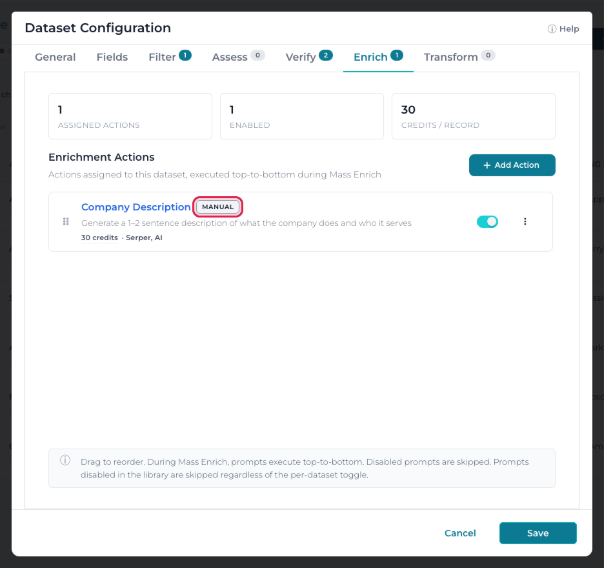
Staged results that are never applied expire after 30 days, while applied results are removed from staging immediately. DataGroomr doesn’t hold on to provider data longer than it needs to.
Why this matters: Enrichment is no longer all-or-nothing. You can let trusted actions run on their own while routing sensitive fields — like job titles, phone numbers, or revenue — through a human check first. Also, you never pay twice for the same data.
A Review Queue Built for Speed
So, you’ve chosen Manual — now what? Held results land in a new review queue that walks you through one record at a time.
Each record displays your current Salesforce data alongside, the data provider’s proposed values, with a switch on every changed field. If a value is close but not quite right, you can edit it in place before applying it. The editor automatically matches the Salesforce field type, whether it’s text, a picklist, a date, or a number. Then make your call:
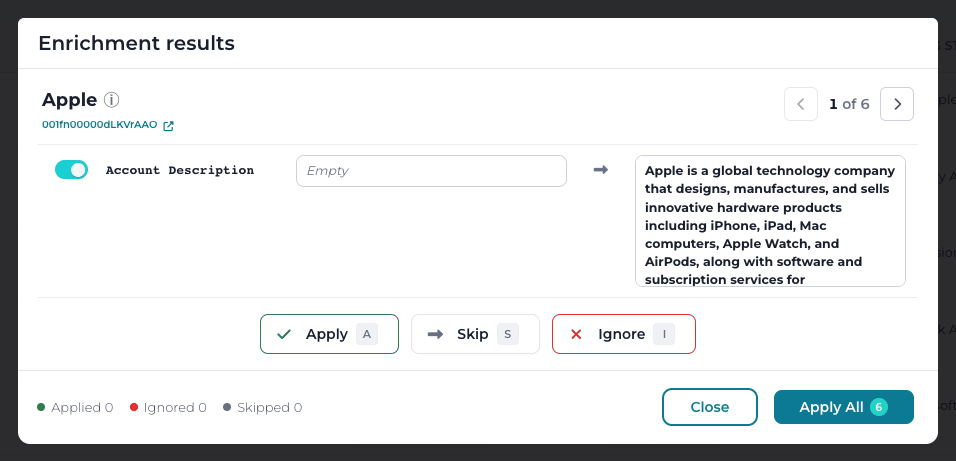
- Apply writes the switched-on fields and moves to the next record.
- Skip leaves the record pending for later.
- Ignore dismisses the proposed changes.
Keyboard shortcuts (A, S, I, plus the arrow keys) let you fly through a backlog without touching the mouse, while live counts show what’s been applied, ignored, and is still pending. When you trust what you’re seeing, Apply All clears the rest of the queue in one step, after confirmation.
Pending work, always in sight
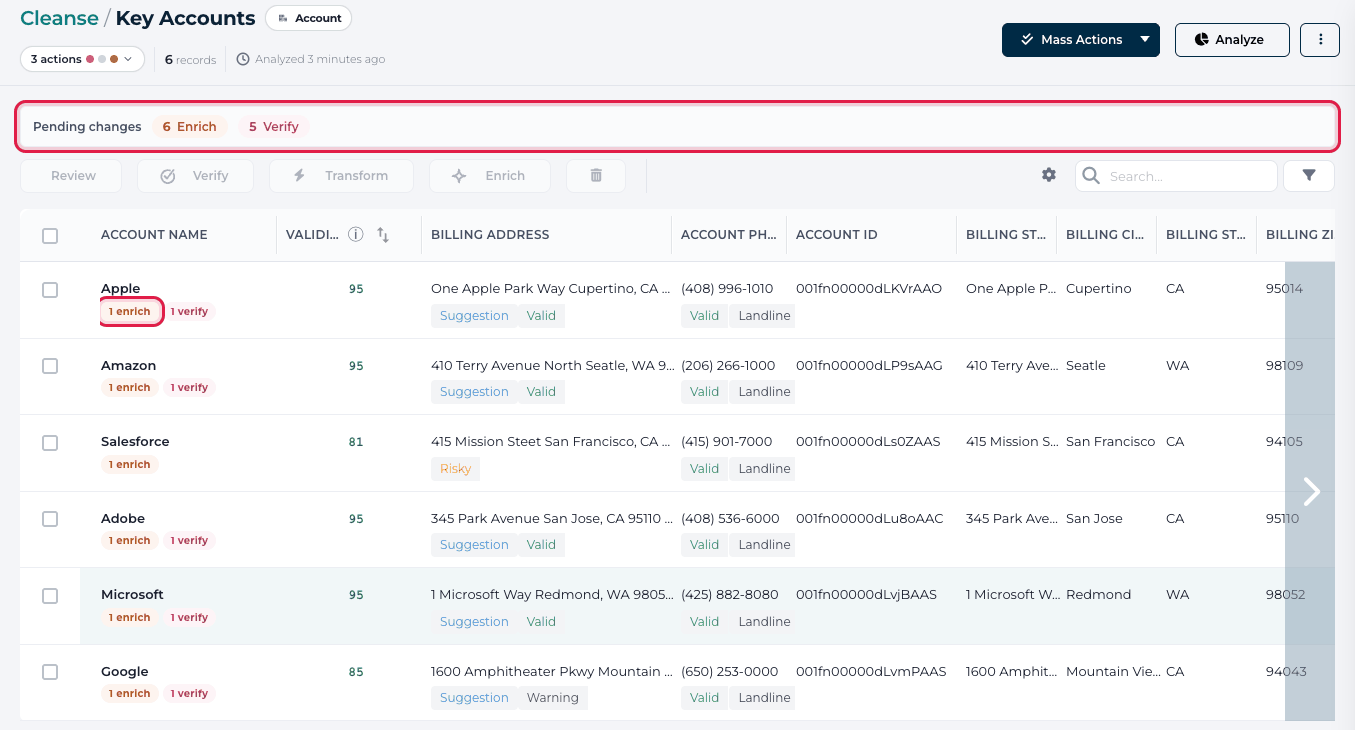
A new Pending changes bar above the Cleanse grid tells you how many Enrich and Verify changes are waiting, and clicking a count opens the right review queue. Records with pending changes also display a small badge under their name — “3 enrich” or “1 verify” — so nothing gets lost while you scroll.
Same experience for verification suggestions
Verification suggestions now work the same way. The suggestion dialog has the same navigator, Apply / Skip / Ignore actions, and shortcuts; so you can clear a backlog of address and email suggestions without bouncing back to the grid between records.
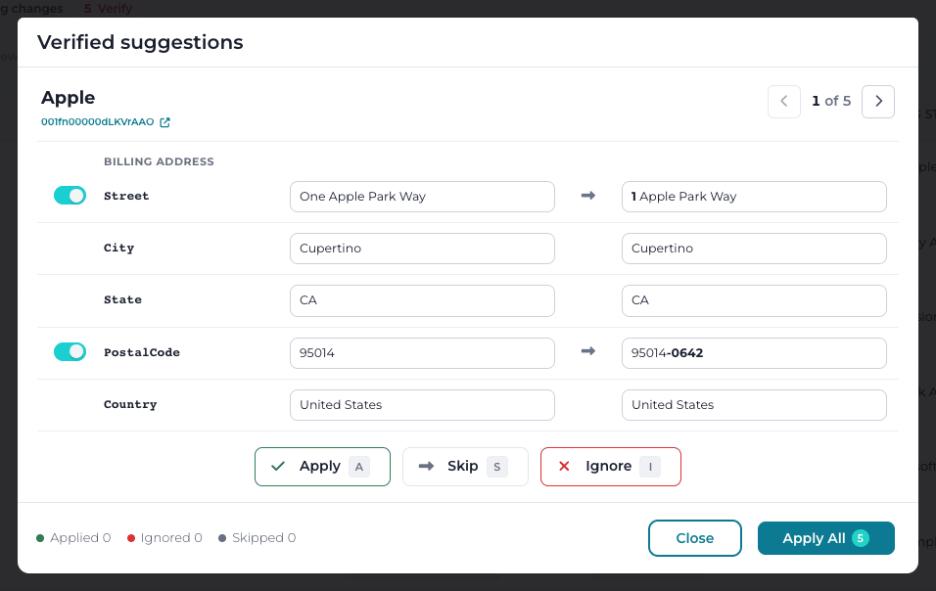
Why this matters: Reviewing data used to mean opening records one by one. Now a reviewer can work through dozens of records in minutes, with full control over every field that reaches Salesforce.
More Room to Automate
Wait steps in workflows
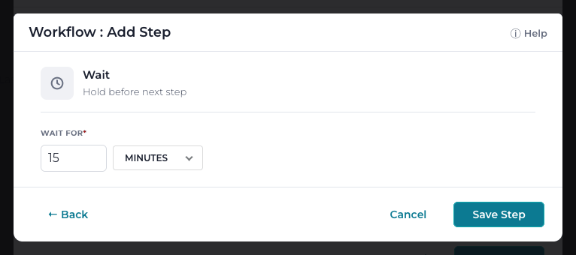
Some steps need breathing room — a Salesforce process may need to finish, or an integration may need time to sync — before the next step can run. Workflows now support a Wait step for exactly that. Set it anywhere from 1 minute to 24 hours; new Wait steps default to 15 minutes.
Mass Update in workflows
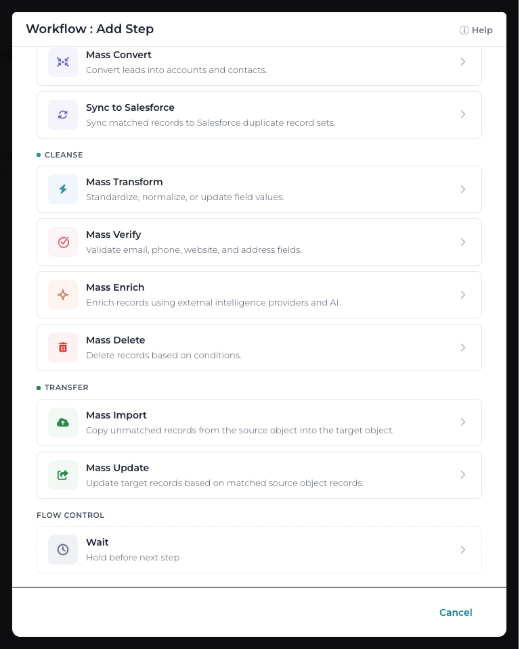
Mass Update can now be added as a workflow step, so bulk field updates can run in sequence with analysis, merge, and other operations instead of being run separately.
Salesforce Flows from Live Dedupe on cross-object datasets
Live Dedupe can now launch a Salesforce Flow when it detects a match on a cross-object dataset — the same capability already available for single-object datasets. Route a matching Lead to its existing Contact’s owner, create a task, or notify a team, all automatically.
Why this matters: The more of your data quality routine that runs on its own, the less it depends on someone remembering to do it.
Smaller Wins Worth a Mention
- Folders for enrichment actions — Organize a growing library of enrichment prompts into folders.
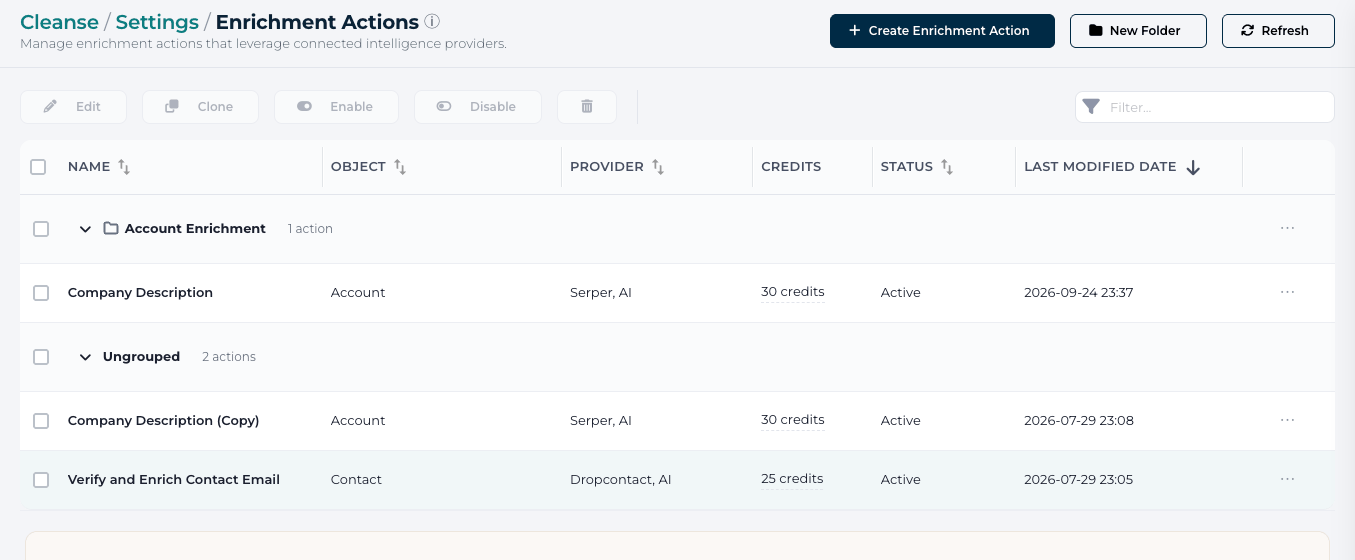
- Transparent enrichment credit estimates — Actions start at 10 credits.Clicking the estimate shows exactly how the total was calculated.
- Cleaner enrichment editor — The cost per record now sits at the top of the Execution Plan, and unmapped output fields default to Skipped.
- “Fields count where” in Data Quality models — Score records against a subset of fields, such as only the ones that are filled in, rather than every selected field.
- Consistent progress for mass operations — Progress for every mass operation now appears in the dataset toolbar.
- Plan tags during trial — Trial users see PRO and ENT tags on plan-specific features.
- Loaders on the Cleanse page — No more placeholder text that looks like real data while a dataset loads.
- A fresher look — expandable sections now use a flat style with rounded borders.
Fixes and Reliability
Merging custom objects and person accounts
This release makes merges much more dependable when related records are involved. Custom object merges no longer stall because of recycle-bin records, related records the master already holds (such as Topic Assignments and unique-key junction records), activity relations on objects with Shared Activities, unique or external ID fields on child records, or audit fields the merging user can’t set. Most importantly, a related child record is never deleted unless it can be re-created on the master. Person accounts that share a household — a common NPSP setup — now merge without the “same related account” error. Merge backups also work in orgs where an existing DataGroomr library wasn’t shared with the merging user.
Verify
Suggested addresses applied to custom address fields now update state and country, not just street, city, and postal code. Permission sets assigned through permission set groups are recognized, estimated credits in the mass verify dialog reflect your filters, and address suggestions are only offered when they actually fix the address. Email verification for Yahoo and Yahoo-hosted domains is also more reliable.
Oscar, our AI agent
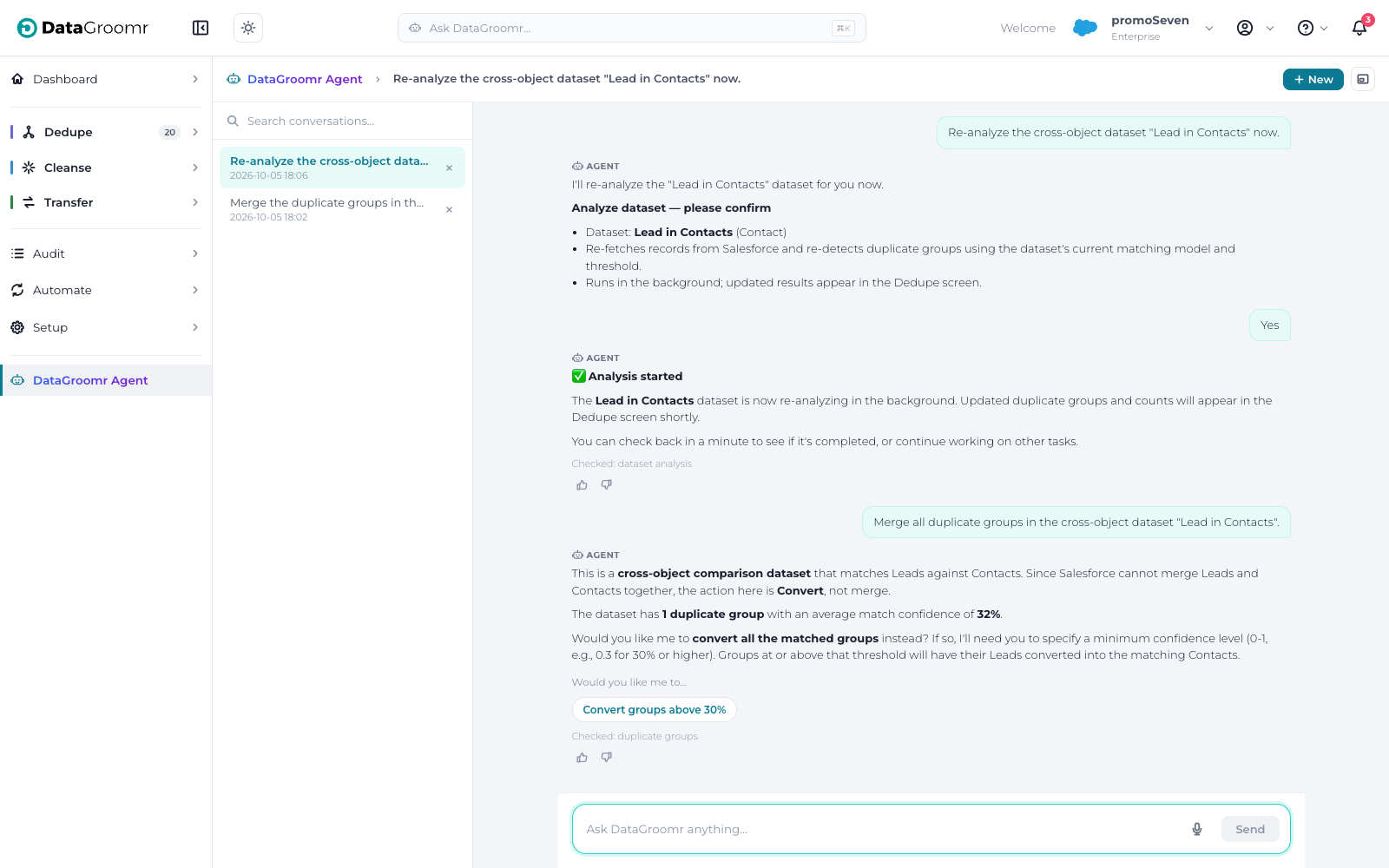
Oscar now recognizes Undo and Rollback Merge, reports the same credit balance as the Credits page, and returns figures that match the app — including record counts for Cleanse datasets. It no longer offers to merge Lead-to-Contact matches and instead points you to Convert on the Comparison screen. Agent-created workflows now run and complete as expected.
Rules, matching, and automation
Transform rules that use dates now preview exactly as they run, the dictionary dropdown works again in the Transform rule editor, and existing merge rules open with their fields intact. Matching models no longer score records with different email addresses as perfect matches after weights are adjusted. Live Dedupe keeps running when the user who last edited a dataset needs to reconnect to Salesforce, and Account Admins no longer receive incorrect “deactivated user” emails for brand-new sign-ups.
Nothing Changes Until You Want It To
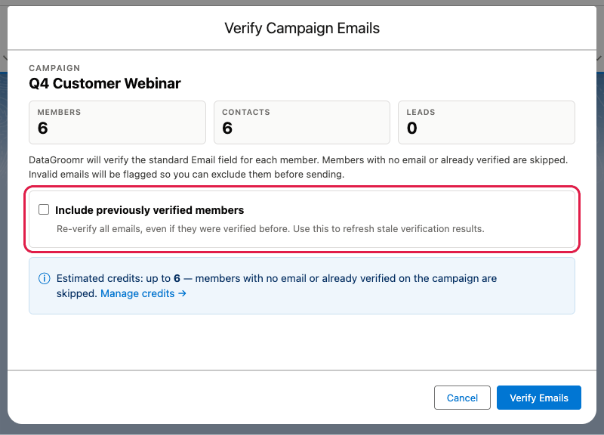
Your existing setup keeps working exactly as before. Existing enrichment actions remain set on Automatic, Flows using the Verify action continue to force verification by default, and campaign verification still skips previously verified members unless you choose otherwise. The one step that needs your attention is assigning the Verify User or Admin permission set before upgrading the Verify package.
Tell Us What’s Next
Have an idea that would make DataGroomr work better for your team? Share it in our Ideas Portal! Many features in this release started there. Questions about anything in October release? Reach out to us at support@datagroomr.com.
Happy DataGrooming!