Your data, wherever you work
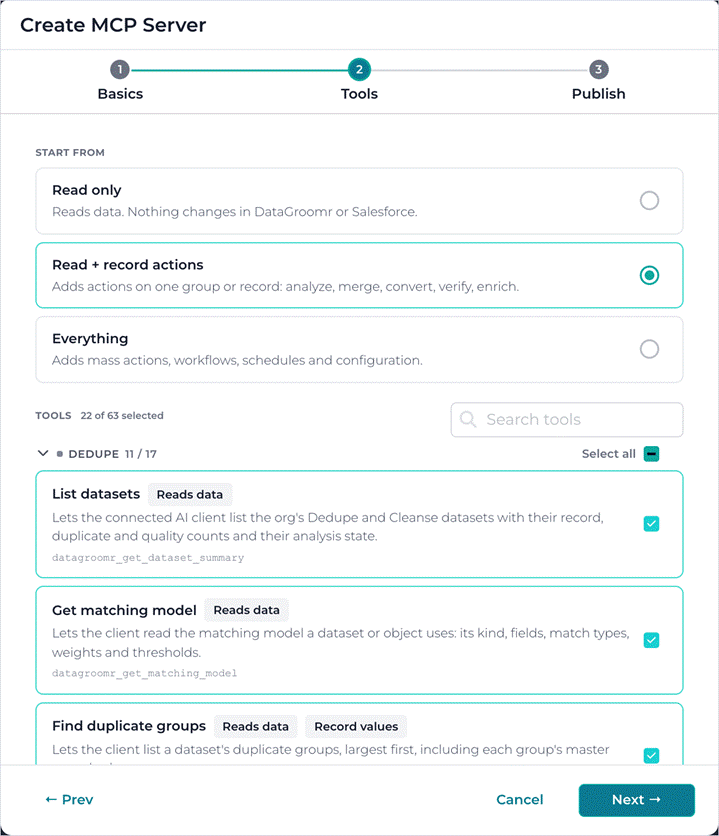
You’re busy working in Claude, ChatGPT, or Agentforce, deep in planning next quarter’s campaign, and you need to know how many duplicate Leads came in with last month’s import. Wouldn’t it be nice to simply ask and get the answer straight from your data?
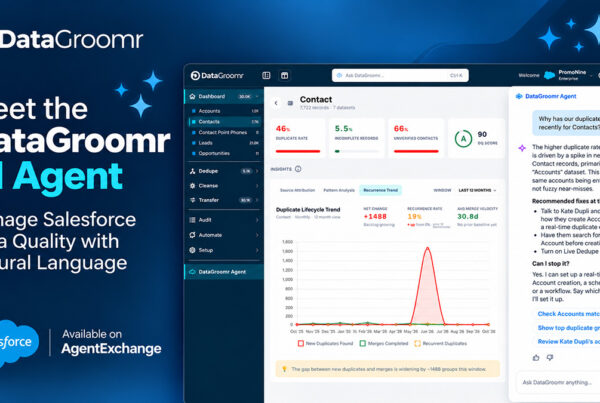
That’s the heart of DataGroomr’s latest release. DataGroomr now meets you inside the AI tools your team already uses, writes dataset filters from a plain-English description, and gives Oscar, our AI Agent, a much bigger set of skills. We’ve also added two new data enrichment providers, review queues in Transfer, and a detailed log of integration activity.
Bring DataGroomr into Claude, ChatGPT, Agentforce and other AI tools
With MCP Servers, admins can make DataGroomr’s AI Agent tools available through an MCP server for their org and connect it to Claude, Agentforce or any MCP-compatible client. DataGroomr is listed in Claude’s Connectors Directory, making it easier for Claude users to discover and connect to DataGroomr directly from their AI workspace.
What’s MCP, in plain terms? The Model Context Protocol is an open standard that lets AI assistants connect to business systems. Think of it as a universal adapter between your AI tools and your data. Once DataGroomr is connected, your AI assistant can look things up in DataGroomr and act on your behalf, just as you would in the app. Instead of remembering where a feature lives, you simply describe what you need.
Here’s what your AI tools can do once they’re connected:
- Ask about your data: Dataset summaries, data health metrics, duplicate groups, match explanations, where duplicates come from, and merge, activity and workflow history.
- Check a record before it’s created: Verify an email, phone, address or URL, check for duplicates from field values alone, or enrich a record.
- Take action: Analyze a dataset, merge or undo a merge, and run workflows, schedules and mass verify, enrich or transform.
- Set things up: Create datasets, matching models, rules, data quality models, enrichment actions and automations.
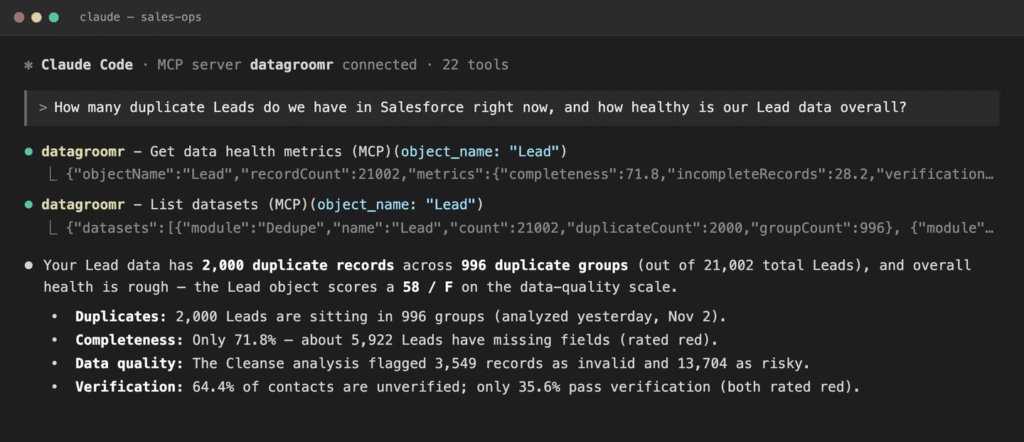
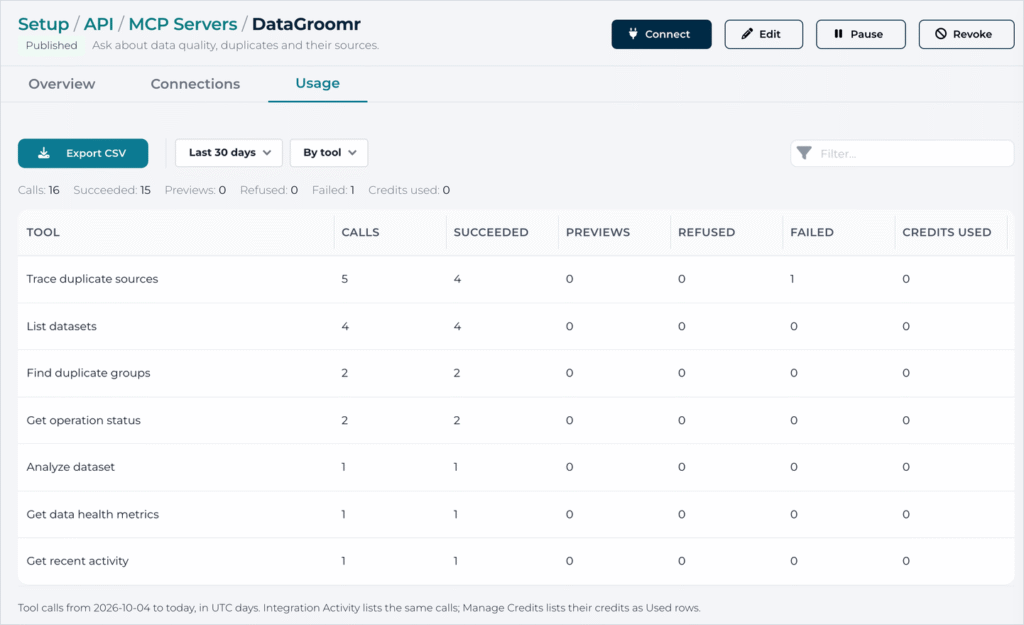
To enable MCP integration, connect your AI agent to https://mcp.datagroomr.com/mcp and follow authentication prompts. If you prefer to select which tools should be available for your AI agent, head to Setup › Integration › MCP Servers, give the server a name, pick exactly which tools it exposes, and decide who may connect.
Claude users can also find DataGroomr in the Anthropic Connectors Directory and follow the connection prompts.
What this opens up for your team
The biggest change is who gets to work with data quality, and where. Here’s what that looks like day to day:
- Sales reps, before they hit Save: “Is Acme Corp already in Salesforce? And is jane@acme.com a real address?” From Agentforce, a rep checks for duplicates using the details they’re about to enter and verifies the email helping keep data clean at the source without opening another app.
- Marketing ops, before a campaign launch: “How clean is the Lead list we imported last week, and how many duplicates came in with it?” Get a health summary and a duplicate count in seconds, then merge the groups before the first email goes out.
- RevOps and Salesforce admins, at the morning check-in: “What did last night’s workflows do, and did any merges fail?” Review run history, undo a merge that shouldn’t have happened, or rerun a schedule — all from one chat.
- Customer success, before a renewal call: “Enrich the Globex account and tell me where its duplicate contacts came from.” Fill gaps in company details and trace duplicates back to their source, whether that’s a web form, an import or a specific user.
- Data stewards, setting things up: “Create a dataset for US Contacts with no email and analyze it.” With the optional configuration tools turned on, an AI client builds datasets, rules and automations from a description.
- Data Stewards, in the weekly review: “What’s our data health across Accounts and Contacts, and how many DataGroomr credits have we used this month?” Get the numbers without waiting for a report.
Bigger than any one tool
MCP really shines when DataGroomr sits next to the other systems your AI assistant already connects to. One conversation can span all of them:
- From inbox to clean record: Pull new contacts out of an email thread, check each against Salesforce for duplicates, and verify their emails before anyone creates a record.
- From data to deck: Turn DataGroomr’s health summary into a table or a slide for Monday’s pipeline meeting.
- From alert to action: When a teammate flags a messy account in Slack, check it for duplicates, merge, and reply in the thread with what changed.
- Custom agents: Your developers can build agents with the Claude API or Agentforce that call DataGroomr as one step in a larger process, such as onboarding new customers or routing inbound leads.
What’s possible depends on the other connectors your AI tool has in place. DataGroomr brings the data quality piece.
Built on the permissions you already have
Every call runs as the connecting user’s own Salesforce identity — there’s no shared service account — so roles, dataset permissions and licenses apply exactly as they do in the app. Users connect with a personal token or by signing in with Salesforce, and in-product guides walk through Claude Code, the Claude API, Agentforce and other clients. Write actions run once the user confirms them in their AI client’s approval prompt, and every tool carries a datagroomr_ prefix, so it’s easy to spot alongside other connectors.
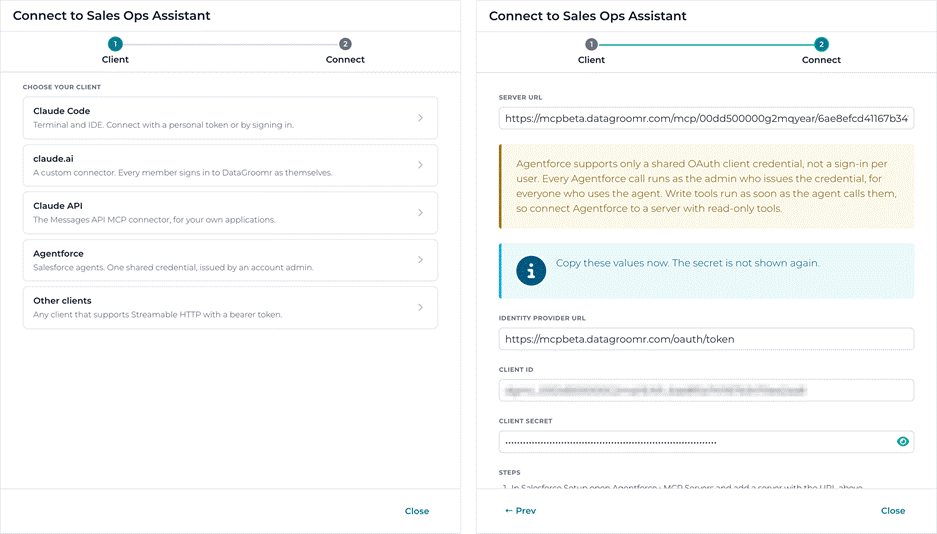
Published MCP Servers are available on Trial and Enterprise plans, and credits are consumed exactly as they are in the app.
Why this matters: Your Salesforce data quality work can happen right where the conversation already is. Data quality becomes part of everyday work for every team — sales, marketing, operations and leadership — in the tools they already use and within the guardrails you already trust.
Describe your filter — DataGroomr writes the SOQL
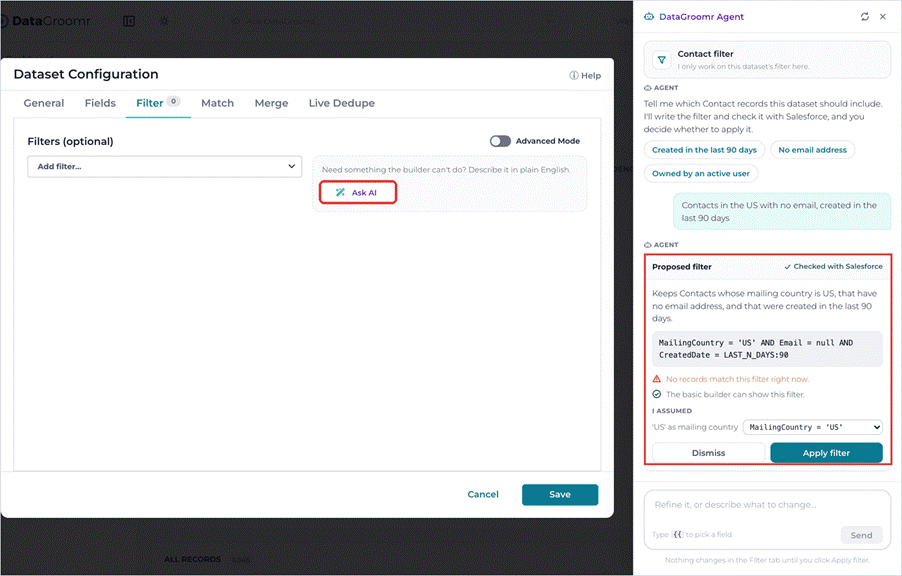
Ever needed a dataset filter like “Contacts in the US with no email, created in the last 90 days” and reached for the SOQL reference? The new AI Filter Assistant turns that sentence into a validated filter.
In Dataset Configuration → Filter, SOQL Mode is now called Advanced Mode, and an Ask AI button sits right beside Estimate count. Describe what you want, type {{ to pick a field if you’d like to be precise, and click Generate filter. You’ll see a short summary, the SOQL itself, and any assumptions the AI made. Click one to change it, refine the request in your own words, then click Use this filter.
- Related records are fair game: Ask for “contacts with open opportunities” or “accounts with no cases” and get the right sub-select.
- Real fields, real values: Filters use only fields on your object and your org’s actual picklist values.
- Relative dates stay relative: “Last 90 days” becomes LAST_N_DAYS:90, so the filter stays current.
- Available on every plan.
Why this matters: Precise datasets are the foundation of good deduplication and cleansing, and now anyone on your team can build one — no SOQL required.
Oscar AI takes on more of the work
Oscar, your DataGroomr AI Agent, picks up a set of new skills this month, and every one of them is also available to your connected AI tools through MCP.
- Manage what you’ve built: Update, pause, or delete scheduled jobs, workflows, triggers, matching models, enrichment actions, datasets, rules, and data quality models. Each change comes with a confirmation card that shows what will change and what depends on it.
- Fix an existing rule: Say “fix the order in my Field Cluster rule so Subscriber wins,” and Oscar reads the rule, drafts a revision that preserves your field lists, shows you the changes, and saves it after you approve.
- Create cross-object datasets: Set up a Leads-in-Contacts dataset just by asking.
- Merge by record ID: Hand Oscar a list of record IDs and tell it which one to keep — the same as selecting records in All Records.
- Source insights per dataset: Ask where a dataset’s duplicates come from and get a breakdown specific to that dataset.
- Sources you can check: When Oscar quotes DataGroomr documentation, it links to the articles so you can explore them further.
Why this matters: Oscar can now carry a setup from first draft through every later adjustment; so a quick conversation is often all it takes to keep your automation in shape.
More data sources — and a review step for Transfer
The DataGroomr enrichment library keeps growing. This release adds two new data providers. Connect them with your own account:
- SMARTe: Person, mobile, company, technographic, and funding data. Credits come from your SMARTe balance and are charged only when data is returned. Technographics covers the technologies your SMARTe admin enables under Org Controls.
- Coresignal: Company, person and job data, plus verified work emails. Sign in with your Coresignal account; credits come from your Coresignal balance.
Transfer datasets also gain the same review queues you know from Cleanse. Results from Manual enrichment actions and verification suggestions appear in a Pending changes bar with Enrich and Verify badges, while badges under each record name show what’s waiting. Work through them with Apply, Skip and Ignore, edit a value before applying it, or use Apply all. Applied values on CSV rows go out with your next push, and anything still pending stays out of Salesforce.
Why this matters: You can enrich and verify data before it ever reaches Salesforce, with a human check on every suggested value.
See who did what — and what started it
With AI clients and integrations working alongside your team, clear visibility matters more than ever. Two additions to Audit make it easy.
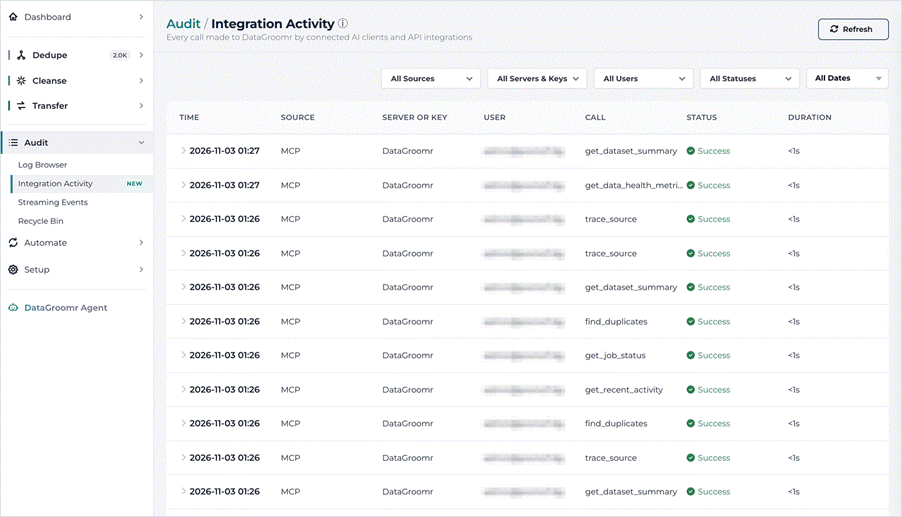
- Integration Activity: A new page that lists every call made by connected AI clients and Ingestion API integrations — the time, the server or API key, the user, the IP address, the call, its status and how long it took. Filter by source, user, status or date, and expand any row to jump to the operations it started in the Log Browser.
- User and Source in the Log Browser: The Triggered By column is now split into two — User shows who who the operation ran as, and Source shows what started it: a scheduled job, a trigger, a workflow, the API, an MCP client, Oscar, or the DataGroomr Duplicates or Verify component in Salesforce. Filter by both at once and find Source in your CSV export too.
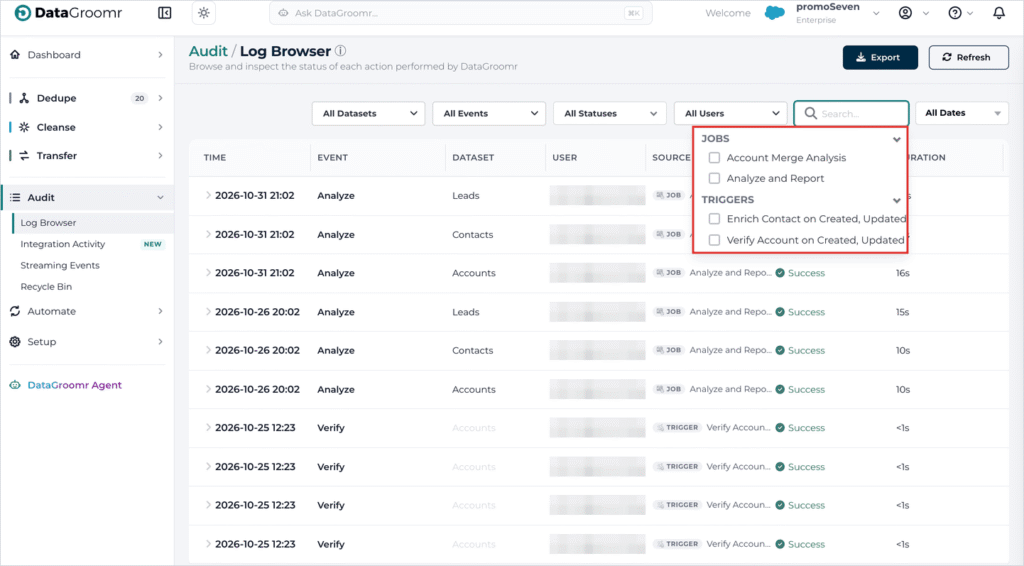
- Live updates: New events appear in the Log Browser, and running operations show a progress bar, elapsed time and a Stop button.
Why this matters: When a record changes, you can tell in seconds whether a person, a schedule or an AI client made the call — and the Log Browser stays focused on the changes to your data.
Smaller changes worth a mention
- Time zones on every schedule: The Run at field for scheduled jobs and workflows shows its time zone, such as Eastern Daylight Time (UTC−04:00), with a Use my time zone link when a colleague saved it in another zone. Editing a job keeps its last run, its On/Off state and its original start date.
- An AI-built “Most Complete” template: In the master record rule designer, the Most Complete template picks the fields that matter most for your object and favors the record with those fields filled in.
- Faster Person Account merges: Mass merges on Accounts in Person Account orgs require far less time to prepare each batch, so large jobs finish sooner.
- Verification suggestions in Dedupe and Transfer: Applying them uses the same streamlined dialog as Cleanse.
- Plain-language Advanced settings: Dataset and trigger settings explain each option more clearly.
Fixes and polish
- Scheduling: Recurring jobs and workflows run on the weekday and time you select in your own time zone, stay on schedule through daylight saving changes, and monthly schedules run on the same date each month.
- Live Dedupe: Records created or edited during a full analysis are grouped as expected, and changes made during a streaming interruption of up to about three days are caught up automatically.
- Merging and rules: Mass Review advances to the next page of groups with correct numbering, “most common value” recognizes matching addresses, AI-generated field merge rules apply ranked preferences in the order you specify, and rule previews count related records correctly.
- Analysis: Cancelling an analysis preserves your existing duplicate results, and the cancellation message identifies the person who pressed Stop.
- Models and enrichment: Auto-Select in Create Matching Model sets weights that total 100%, regenerating an enrichment plan keeps your field mappings, and the rule editor’s multiselect field list stays open while you pick.
Tell us what’s next
Many of this month’s additions started as customer requests. Have an idea for what we should build next? Add it to our Ideas Portal or drop us a line at support@datagroomr.com.
Happy DataGrooming!